This site is called Conditional Access, and yet surprisingly, it has very little advice on what you should do for CA policies. I've stayed away from this subject on purpose; it's very hard to "baseline" CA policies as they are very bespoke to the individual needs of a business, and nobody can ever agree on what's best.
The word "baseline" holds a lot of weight too. Many frameworks or baselines have become inarguable rulesets for administrators everywhere, even though few of them ever set out to be used in that way.
So, this isn't a baseline, I'm not even going to call it guidance. These are some policies I use, feel free to take some inspiration.
I've copied ideas I've seen from Jay Kerai, Ru Campbell and others.
General Approach#
Apply broadly, exclude narrowly.
If you assign to static groups, you've made yourself a static problem. Even if it's a dynamic group, there might be times where for whatever reason a user isn't quite fitting the rule, and it may as well have been an "all users" assignment from the start anyway.
Note: Where specific property types aren't configured, that means it will apply to everything. In "MFA all users all resources", I'm not configuring any network or conditions. It simply means it applies to all users regardless of other possible login routes.
Policy list#
| Name | CA01: MFA all users all resources |
| Users | All users |
| Target Resources | All resources |
| Grant | Require multifactor authentication |
A lot of guides will tell you to do a separate one for admins, which might assist with the gradual rollout of policies like this, but the end goal is everyone gets MFA.
| Name | CA02: Block Legacy Auth |
| Users | All users |
| Target Resources | All resources |
| Conditions | Client Apps --> Configure = YES |
| ☑️Exchange ActiveSync | |
| ☑️Other Clients | |
| Grant | Block access |
Time to get rid of those old printers.... and don't exclude your break glass from this one. In case of emergency, an SMTP email account is not what your Global Admin account is logging into :)
| Name | CA03: Block Unsupported OS Types |
| Users | All users |
| Target Resources | All resources |
| Conditions | Device Platforms --> Configure = YES |
| Include = Any Device | |
| Exclude | |
| ☑️Android | |
| ☑️iOS | |
| ☑️Windows | |
| ☑️macOS | |
| Grant | Block access |
This one is very powerful. Entra doesn't have listed options for every single user agent. By blocking all, but explicitly allowing the ones we want, we're greatly reducing attack surface.
If your business doesn't use macOS, don't exclude it from the list.
| Name | CA04: Require App Protection (mobile) |
| Users | All users |
| Target Resources | All resources |
| Conditions | Device Platforms --> Configure = YES |
| Include | |
| ☑️Android | |
| ☑️iOS | |
| Grant | Require app protection policy |
This firstly requires an Intune MAM policy. My preferred route is MAM-WE, that's Mobile Application Management-Without Enrolment. I don't want people enrolling any personal devices in my tenant.
| Name | CA05: Require Compliant Desktop |
| Users | All users |
| Target Resources | All resources |
| Conditions | Device Platforms --> Configure = YES |
| Include | |
| ☑️Windows | |
| ☑️macOS | |
| Grant | Require device to be marked as compliant |
Probably the most effective way of preventing AiTM breaches, fairly hard to get businesses to understand that business data should only be accessed on business devices. Congrats if you've done this!
| Name | CA06: Block Code Flow |
| Users | All users |
| Target Resources | All resources |
| Conditions | Authentication flows --> Configure = YES |
| ☑️Device code flow | |
| Grant | Block access |
We're blocking the "netflix" style logins for everyone. Normal end-users typically don't need to use this, some admin functions require it for certain PowerShell modules etc.
| Name | CA07: Sign In Risk - Medium/High - MFA |
| Users | All users |
| Target Resources | All resources |
| Conditions | Sign-in risk --> Configure = YES |
| ☑️High | |
| ☑️Medium | |
| Grant | Require multifactor authentication |
| Session | Sign-in frequency |
| ☑️Every time |
This, in conjunction with the "require compliant device" is why I don't do location blocking. It might make sense for you to do location blocking to make your logging quieter.
| Name | CA08: User Risk - High - Reset PW |
| Users | All users |
| Target Resources | All resources |
| Conditions | User risk --> Configure = YES |
| ☑️High | |
| Grant | Require password change |
| Session | Sign-in frequency |
| ☑️Every time |
| Name | CA09: Windows Token Protection |
| Users | All users |
| Target Resources | Select Resources |
| Microsoft Teams Services cc15fd57-2c6c-4117-a88c-83b1d56b4bbe |
|
| Office 365 Exchange Online 00000002-0000-0ff1-ce00-000000000000 |
|
| Office 365 SharePoint Online 00000003-0000-0ff1-ce00-000000000000 |
|
| Conditions | Device Platforms --> Configure = YES |
| ☑️Windows | |
| Client apps | |
| ☑️Mobile apps and desktop clients | |
| Session | |
| ☑️Require token protection for sign-in sessions (Generally available for Windows. Preview for MacOS, iOS) |
A slightly less impacting version of "Require Compliant Device" in a way. Most attackers will try and access one of the listed resources as their entry point. Combine them both because why not?
| Name | CA10: Breakglass Require FIDO2 |
| Users | Specific users included (BG account only) |
| Target Resources | All resources |
| Grant | Require Authentication Strength |
| 🔽Phishing-Resistant MFA |
A long password in a safe for the Global Admin is not good enough. Use FIDO2 on that account.
| Name | CA11: Register Security info only in operating countries |
| Users | All users |
| Target Resources | 🔽User Actions |
| ☑️Register security information | |
| Network | Configure --> YES |
| Include | ☑️Any network or location |
| Exclude | ☑️Selected networks and locations |
| (need to configure this in "named locations") | Select --> Your list of operating countries |
| Grant | Block Access |
A created account without MFA registration is quite risky. Lower the risk with this restricting policy. If your new starters always start in the office, make that the only location where they can register.
Alternate, more secure version of the above
| Name | CA11B: Require TAP for Security Info Registration |
| Users | All users |
| Exclude Users | Guest or external users |
| (Select all) | B2B collaboration guest users B2B collaboration member users B2B direct connection users Local guest users Service provider users Other external users |
| Target Resources | 🔽User Actions |
| ☑️Register security information | |
| Grant | Require Authentication Strength |
| 🔽Custom Auth Strength set to: TAP |
Thanks to Thor Nicolaï for pointing this out, and to the supporting Microsoft Docs
| Name | CA12: Block Authentication Transfer Flows |
| Users | All users |
| Target Resources | All Resources |
| Conditions | Authentication Transfer --> Configure = YES |
| ☑️Authentication transfer | |
| Grant | Block Access |
This prevents user authentication jumping to devices you might not want them to.
Use the impact analysis#
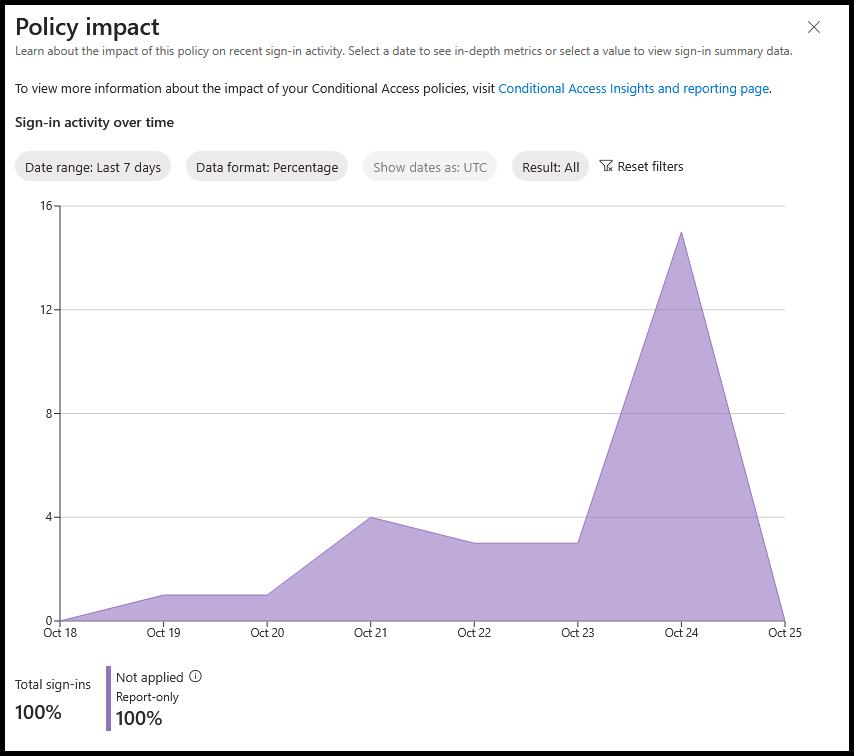
Do not yeet any of these out into customer environments before fully understanding the impact.