I've been trying to finish this post since March, so I'm releasing it in the current state today. I'll come back occasionally to add new pieces - August 2026
Many companies have Defender for Office 365 P1 as part of their preexisting software license subscriptions:
Bundle SKUs
- M365 Business Premium
- M365 E3 (as of July 2026)
- M365 E5
- Office 365 E3 (as of July 2026)
- Office 365 E5
Frontline SKUs
- M365 F5 Security
- M365 F5 Security + Compliance
Education
- M365 A5 Security
- M365 A5
That’s a lot of customers who have (or will have) this email security benefit!
I believe that Defender for Office 365 is perfectly adequate as the sole, primary solution for email protection in any company size.
This blog exists to explain how to better configure MDO to go beyond the out-of-box configurations, which is usually the yard stick people measure with when they quickly dismiss the Microsoft first-party email protection solution. A decade or so ago, it was default practice to bolt on a third-party antispam solution.
I'm going to try to disprove that.
Who is this post written for?#
Security Admins, email admins, tenant admins, MSPs and all in-between.
Maybe you’re a decision maker who isn’t as hand-on as you used to be and the Finance Director is asking you to find ways to be more effective with the current toolset.
This guide aims to help people configure your existing toolset to prevent BEC (Business Email Compromise).
Section 1: DNS Records#
The Email Domain#
Your company domain holds the keys for how nearly all professional communication is conducted. Many services, platforms, and infrastructure elements rely on it as a central and crucial part of operations.
Attackers know this and will try to exploit you here where possible.
The first things you should establish are:
- Do you have control of your company domains?
- Is the platform you log into to manage DNS protected by MFA?
- Who has access to manage the DNS records, and have you given access to third-party contractors like web developers who may make inadvertent unhealthy changes?
- Do you own all possible obvious domains that might identify you as an organisation?
Example: If I am contoso.com but operate in the UK, do I also own and manage contoso.uk and contoso.co.uk?
SPF/DKIM/DMARC#
We aren’t going to go too deep into how everything works as that content already exists all over the internet. We’re going to remind and guide you on the things that need doing.
SPF - Sender Policy Framework#
This dictates who has permission to send email on behalf of your domain
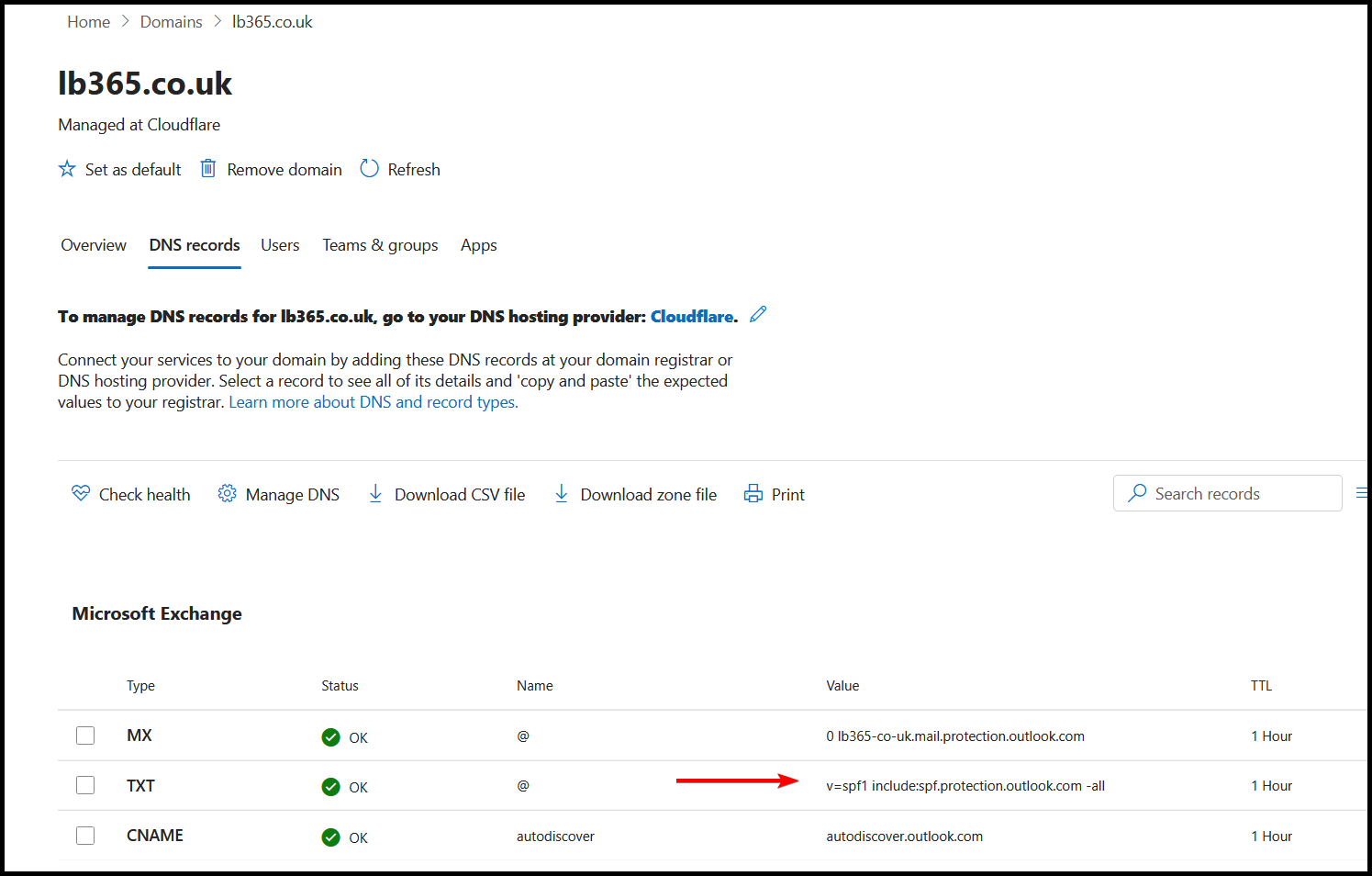
This is what the default SPF record should look like when you only send mail from Exchange Online:
v=spf1 include:spf.protection.outlook.com -all
If you have other services like MailChimp, Hubspot, or a PSA tool, you will need to add them to your record. If you don’t, your email very likely ends up in recipient junk. If It’s marketing content maybe it belongs there anyway…?
Configuration Steps:
- Go to https://admin.cloud.microsoft/?#/Domains
- Add or select your domain
- Select DNS Records
- Go add the TXT record in your DNS console
DKIM- DomainKeys Identified Mail#
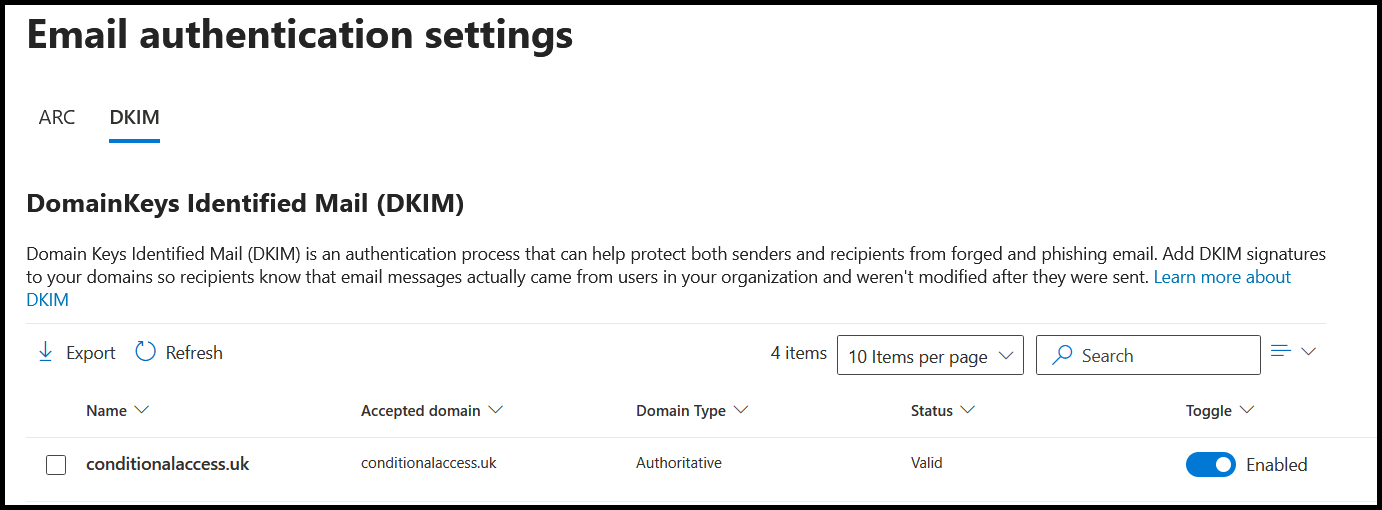
DKIM verifies that an email has not been altered in transit. It’s very easy to enable with no impact. Do this for each domain you own.
Configuration Steps:
- Go to https://security.microsoft.com/authentication?viewid=DKIM
- Select your domain, toggle on DKIM
- Log into your DNS console and create the two CNAME records from the copied info
DMARC – Domain-based Message Authentication, Reporting and Conformance#
Nice and easy to remember that one.
DMARC is a critical configuration to prevent people from spoofing emails from your domain. If you care about doing your bit for preventing global spam, get this one done.
Use tools like DMARC Lookup to see if your company has the record configured.
Example:
v=DMARC1; p=reject; rua=mailto:3fc936581c31.a@dmarcinput.com; ruf=mailto:3fc936581c31.f@dmarcinput.com; sp=none; fo=1
The most important aspect of this policy is the value of “P=” as that means policy.
P can equal:
- None
- Quarantine
- Reject
Bad Practices#
- Usually, people start off with good intentions, setting up the reporting email addresses but leaving the policy in “None” forever. This is fine for audit, but is effectively a useless configuration in reality
- Setting “pct=25”; that is, 75% of the emails are not following this policy. Again, likely good intentions but a deliberate Swiss-cheese style of security. Do one better and either don’t include that parameter at all since it has been removed from the latest DMARC spec.
Tip:
If you have budget, use a DMARC reporting service and configure it to their instructions. The reports are quite hard to read when trying to determine if full Reject mode might block legitimate business apps.
Configuration:
This one is done outside of M365, as a TXT record on your domain.
Your starting policy could look like this:
v=DMARC1; p=none; rua=mailto:aggregate@contoso.com;
But should eventually at least look like this:
v=DMARC1; p=reject; sp:reject; rua=mailto:aggregate@contoso.com;
In the effort of trying to keep our guidance here concise, go read this instead:
I have Edge and Chrome extensions for quickly checking your records
Section 2: Threat Policies#
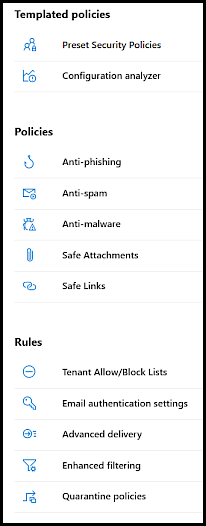
Most of the basic protections in Exchange Online can now be done from the Microsoft Security Portal.
This is not to be confused with Exchange Online admin centre, which is where things like Mail Flow Rules still live.
The Preset Security Policies templates are not a bad place to start, but you wouldn’t be reading this guide if expected me to tell you to run with built-in recommendations and leave it at that. If you have no idea where you’re at, the Configuration analyser is also a useful tool.
The guidance will run through manually creating new policies for each section, justifying decisions where necessary throughout.
FROM THIS POINT ONWARDS:
I am giving recommendations only; it is your responsibility to test before “yeeting to prod”
The Defender for Office Protection Stack#
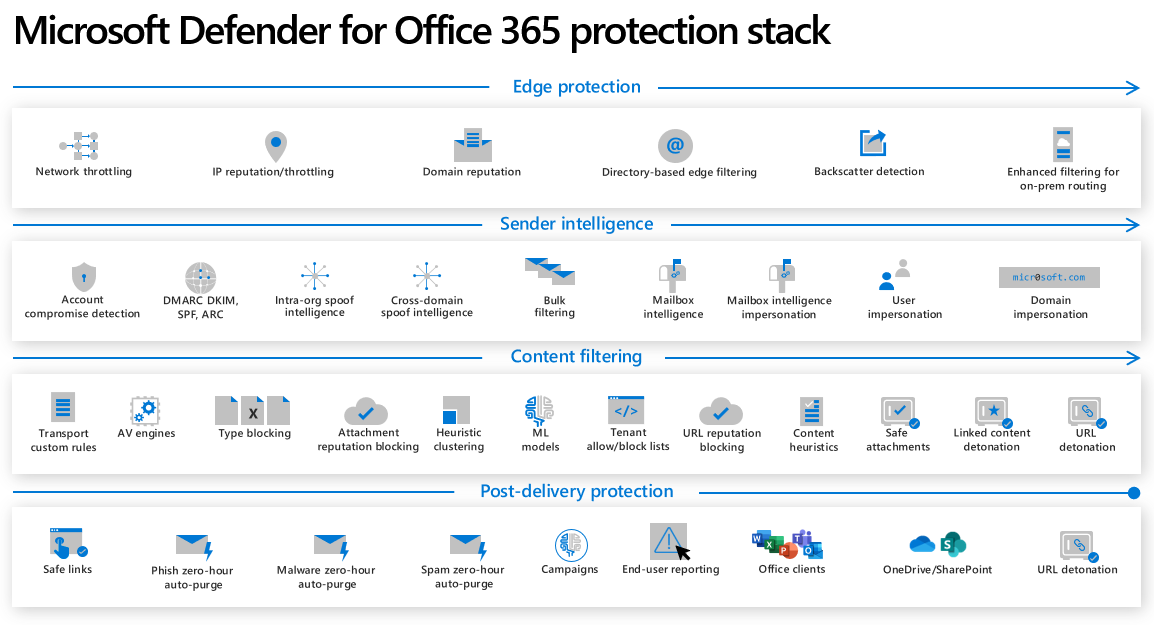
Protecting email in a Microsoft tenant uses a combination of Exchange Online Protection and Defender for Office 365.
EOP is what you get as standard as part of any Exchange Online license. This is what does most of the heavy lifting when properly configured, while Safe Links and Safe Attachments as part of Defender for Office will get you closer to 100% effective coverage and protection.
I encourage you to look through the official docs on this topic, as every time I show customers this page they are simply unaware that MDO has all these capabilities. This is testament to quite how well competing products are able to out-market Microsoft on basic, not-very innovative, standard protection features.
Does Exchange Online provide any URL/Attachment protection by default?#
Great question, I’m glad you asked.
The answer is YES… but it’s not as comprehensive as what you get in MDO.
Without MDO P1, you get a check of the URL/Attachment against known bad signatures/content according to Microsoft Threat Intelligence at the time of delivery.
With MDO P1, in addition to the above, attachments are detonated and tested during delivery, and when a user clicks a link, it’ll be checked in real-time using updated Microsoft Threat Intelligence via the Safe Links service.
What about Zero-hour Auto Purge (ZAP)?#
If Microsoft Threat Intelligence later classifies an email as having bad content, it’ll move it to junk/quarantine depending on your policy. This functionality exists as a base protection feature of Exchange Online Protection and does not require MDO P1.
https://learn.microsoft.com/en-us/defender-office-365/how-policies-and-protections-are-combined
Quentin Quarantino #
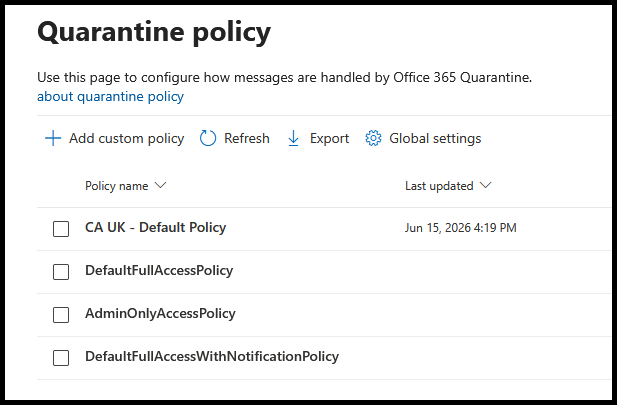
The Exchange quarantine is pretty flexible within M365 although the defaults and how they are applied can seem a bit overwhelming. These policies are applied when specific actions are met within the Threat Policies themselves:
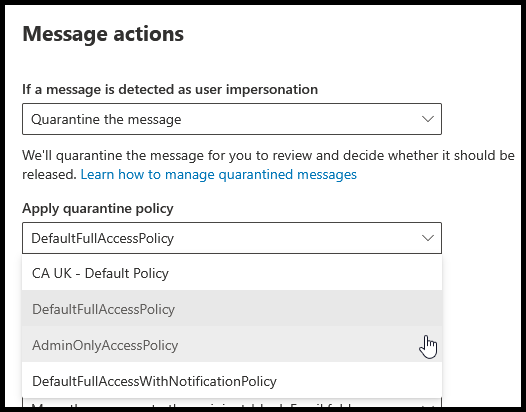
If we look at the default one, we can see it's not very good:
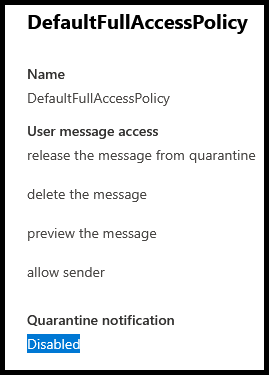
One common complaint about Defender for Office 365 is that users aren't notified of quarantined items, now you know why. You should create a new policy and apply it as the default action for all the threat policies. Additionally create one that requires admin release for higher threat messages, like contains malware etc.
I'd also recommend going into the Quarantine Global settings and change the notification to 4 hours:
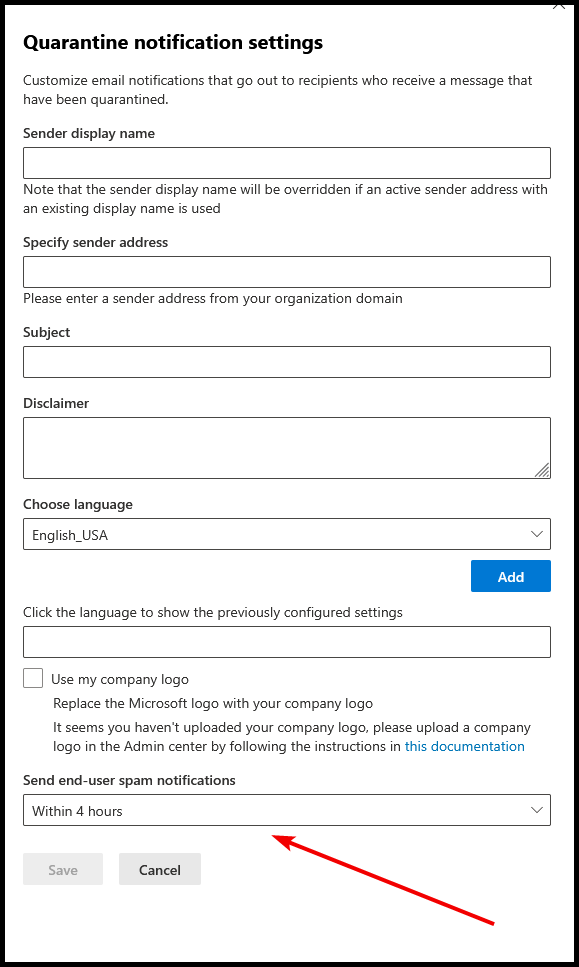
All the other stuff here is totally up to you, but people often get a bit annoyed when they have to wait an entire business day for an email they were expecting.
Configurations Reference#
These recommendations might change over time, and you also might not agree with what I think initially, tweak them to suit what works for your org.
Anti-phishing: Config#
| Users, groups, and domains | |
| Included Recipient Domains | The domains you use in production |
| Phishing threshold & protection | |
| Phishing threshold | 3 - More Aggressive |
| User impersonation protection | On for upper-mgmt & IT people [1] |
| Domain impersonation protection | On for owned domains |
| Trusted impersonated senders and domains | Ideally off |
| Mailbox intelligence | On |
| Mailbox intelligence for impersonations | On |
| Actions | |
| If a message is detected as user impersonation | Move the message to Junk |
| If a message is detected as domain impersonation | Move the message to Junk |
| If a Mailbox Intelligence detects an impersonated user | Move the message to Junk |
| If the message is detected as spoof and DMARC Policy is set as p=quarantine | Quarantine the message |
| If the message is detected as spoof and DMARC Policy is set as p=reject | Reject the message |
| If the message is detected as spoof by spoof intelligence | Move the message to Junk |
| First contact safety tip | On |
| User impersonation safety tip | On |
| Domain impersonation safety tip | On |
| Unusual characters safety tip | On |
| Unauthenticated senders symbol (?) for spoof | On |
| Show “via” tag | On |
| Honor DMARC record policy when the message is detected as spoof | On |
[1] Include people who are most likely to be impersonated. You get 350 entries so extend it to finance and IT users if you’ve already done your executives.
Antispam#
Inbound#
| Bulk email threshold & spam properties | |
| Bulk email threshold | 6 |
| URL to .biz or .info websites | Off [1] |
| Image links to remote sites | Off |
| URL Redirect to other port | Off |
| Empty Messages | On |
| JavaScript or VBSScript in HTML | Off |
| Object tags in HTML | Off |
| Frame or iframe tags in HTML | Off |
| Embedded tags in HTML | Off |
| Form tags in HTML | Off |
| Web bugs in HTML | Off |
| Sensitive words | Off |
| SPF record: hard fail | On |
| Conditional Sender ID filtering: hard fail | Off |
| Backscatter | Off |
| Test mode action | None |
| International spam – languages | Off |
| International spam – regions | Off |
| Actions | |
| Spam message action | Move message to Junk Email folder |
| High confidence spam message action | Quarantine message |
| Phishing message action | Move message to Junk Email folder |
| High confidence phishing message action | Quarantine message |
| Apply the following quarantine policy: | Contoso Admin Release |
| Bulk message action | Move message to Junk Email folder |
| Intra-Organizational messages to take action on | Default |
| Enable spam safety tips | On |
| Enable for spam messages | On |
| Enable for phishing messages | On |
| Retain spam in quarantine for this many days | 30 |
| Allowed and blocked senders and domains | |
| Allowed senders |
[Skip to Tenant Allow and Block List chapter] |
| Blocked senders | |
| Allowed domains | |
| Blocked domains | |
[1] See section Block Lists
Connection Filter#
Not used. We will cover more powerful protections in the section:
Tenant Allow and Block List
Outbound – Contoso Outbound#
These need to be set for whatever is suitable for your org.
| Protection Settings | |
| Restrict sending to external recipients (per hour) | 0 |
| Restrict sending to internal recipients (per hour) | 0 |
| Maximum recipient limit per day | 0 |
| Over limit action | Restrict the user from sending mail until the following day |
| Automatic Forwarding | Automatic – System-controlled |
| Send a copy of suspicious outbound messages or message that exceed these limits to these users and groups | Off |
| Notify these users and groups if a sender is blocked due to sending outbound spam | Off |
Anti-malware – Contoso AM#
| Protection Settings | |
| Enable the common attachments filter | On |
| Customize file types | *Ensure common archive files are added: .zip, .zipx, .rar, .7z, .tar, .gz, .bz2, .xz, .arj |
| When these file types are found | Reject the message with a non-delivery receipt (NDR) |
| Enable zero-hour auto purge for malware | On |
| Notify an admin about undelivered messages from internal senders | |
| Notify an admin about undelivered messages from external senders | |
| Customize notifications | |
| Quarantine policy | Contoso Admin Release |
*It seems wild to allow the free flowing of .zip files straight into the inbox when tools like OneDrive exist today. Push it to quarantine, relax your release rules so users can do it themselves if necessary
Safe Attachments – Contoso SL#
| Users and Domains | |
| Included recipient domains | Domains used in production |
| Settings | |
| Safe attachments detection response | Block |
| Redirect attachments | Disabled |
| Quarantine Policy | Contoso Admin Release |
Safe Links – Contoso SA#
| Users and Domains | |
| Included recipient domains | Domains used in production |
| Protection Settings | |
| On | |
| Apply Safe Links to email messages sent within the organisation | On |
| Apply real-time URL scanning for suspicious links and links that point to files | On |
| Wait for URL scanning to complete before delivering the message | On |
| Do not rewrite URLs, do checks via Safe Links API only. | Off |
| Do not rewrite the following URLs in email (0) | Blank |
| Teams | On |
| Office 365 Apps | On |
| User Clicks | |
| Track user clicks | On |
| Let users click through to the original URL | Off |
| Display the organization branding on notification and warning pages | On |
| Notification Settings | |
| User custom notification text | Not Set |
Section 3: Exchange Config & Rules#
Exchange Admin Center#
In the early days of Exchange Online, all mail-related policies, rules, and security was configured directly in the Exchange Admin Center. There are still some reasons to go there which we will cover in this section.
Mail flow Settings#
Found at EAC -> Settings -> Mail flow
My recommendations here largely follow tenant defaults; items like storm protection will need to be adjusted for your org size.
| General | |
| Turn off plus addressing for your organization | Unchecked |
| Turn on sending from aliases | Unchecked |
| Security | |
| Turn off SMTP AUTH protocol for your organization | Checked |
| Turn on use of legacy TLS clients | Unchecked |
| Reply-all Storm Protection | |
| Enable reply-all storm protection | Checked |
| Minimum number of recipients | 2500 |
| Minimum number of reply-alls | 10 |
| Block duration | 6 (hours) |
| Message Recall | |
| Enable cloud-based message recall | Checked |
| Allow user to recall messages read by the recipient | Checked |
| Enable recall alerts for recipient | Checked |
| Only for recalled messages that were read by the recipient | Checked |
| Do not allow senders to recall messages older than this | 365 Days |
Rules to Consider#
Disclaimer for mail received by personal mail domains#
The big custom "THIS IS AN EXTERNAL EMAIL" banner I see countless companies do is extremely annoying and probably ineffective.
- It's applied to almost every email so it quickly becomes noise
- It makes email chains with legitimate businesses/contacts messy
- It ruins the preview view on mobile
A better solution in my view is to be more selective about when you apply those banners. I'd argue it's less important in B2B to have the big annoying banner on every email, but instead apply it in a scenario where someone is potentially impersonating a business from a consumer email service.
There are other EXO mechanisms which already indicate that someone isn't who you think they are, like the First Contact Safety Tip - use that.
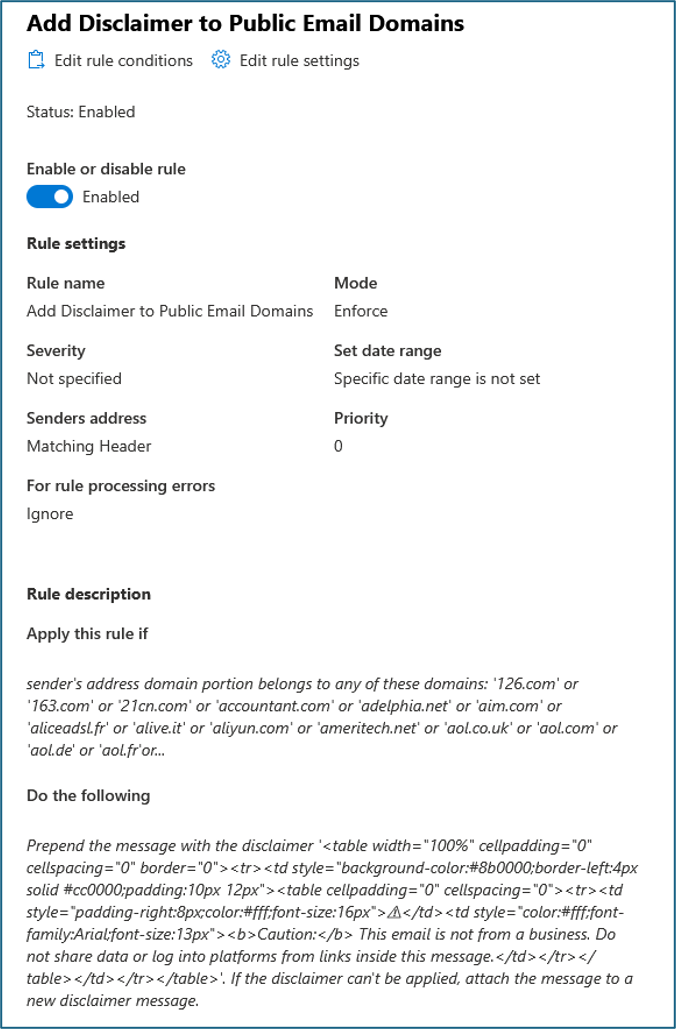
In this example, a red warning will pop up only when mail arrives from over 200 domains identified as personal mail hosting companies. You will need Exchange Online PowerShell to quickly implement.
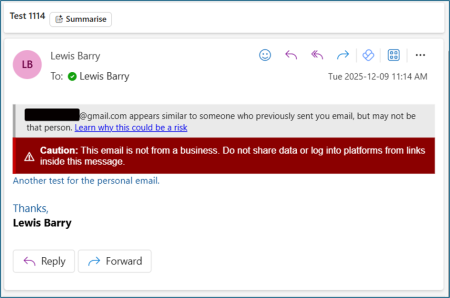
Since I'm being more targeted with the approach, it means the warning message can be stricter. I'm not warning you that you got an email, you get loads of those, I'm telling you this time it's different.
View the PowerShell script to implement
Section 4: Advanced Techniques#
It is useful but not essential to have Defender for Office P2 for the hardening described in this section. While the protection outcome will be the same as using DFO P1, DFO P2 with its KQL and hunting ability allows us to quickly assess the impact of a desired policy implementation before going live.
Tenant Allow/Block Lists#
This is the most powerful defence you have at your disposal when configuring protections. TABL allows you to define top-level tenant rules for what is and is not allowed in the inbox folder, and with some creativity and carefully curated lists, will be what makes Defender out-perform market competitors in terms of keeping inboxes clean.
The most obvious use-case – Taking Action on a bad email#
When you review an email in MDO, you'll see "take action".
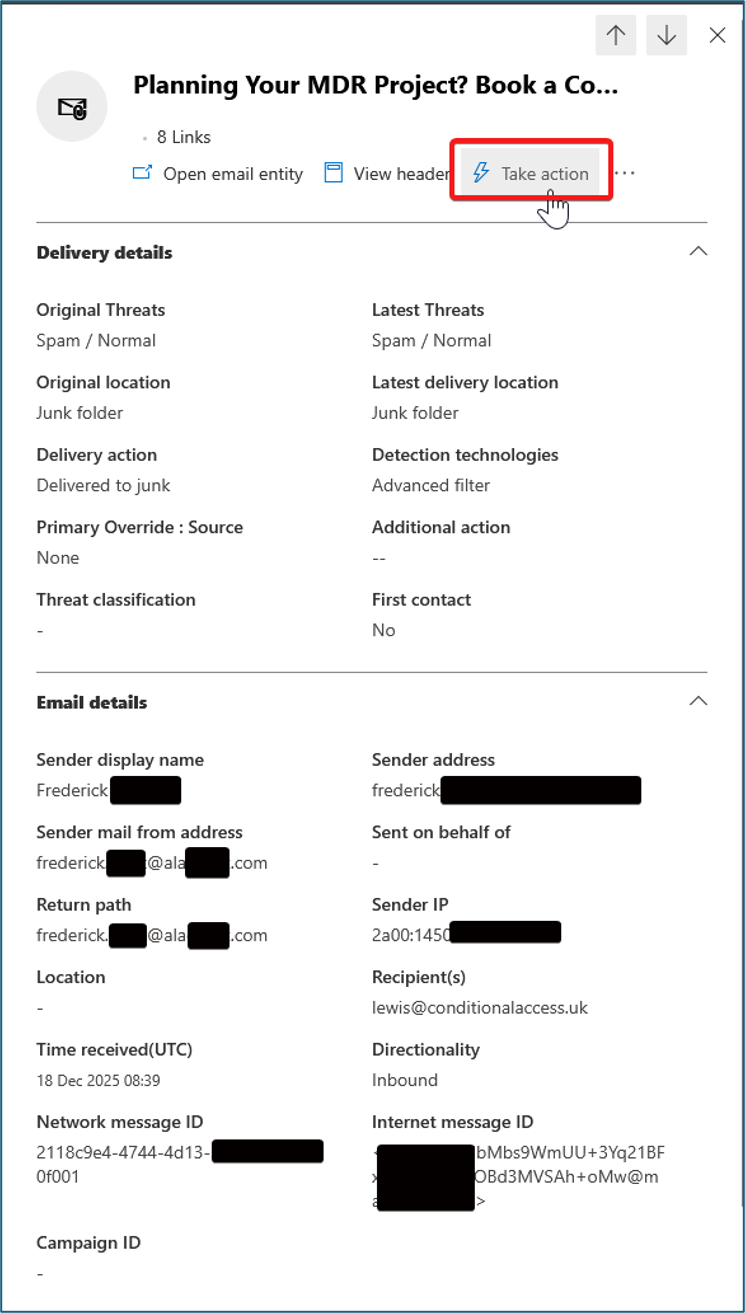
Upon clicking, I will see a list of indicators that can be added to TABL:
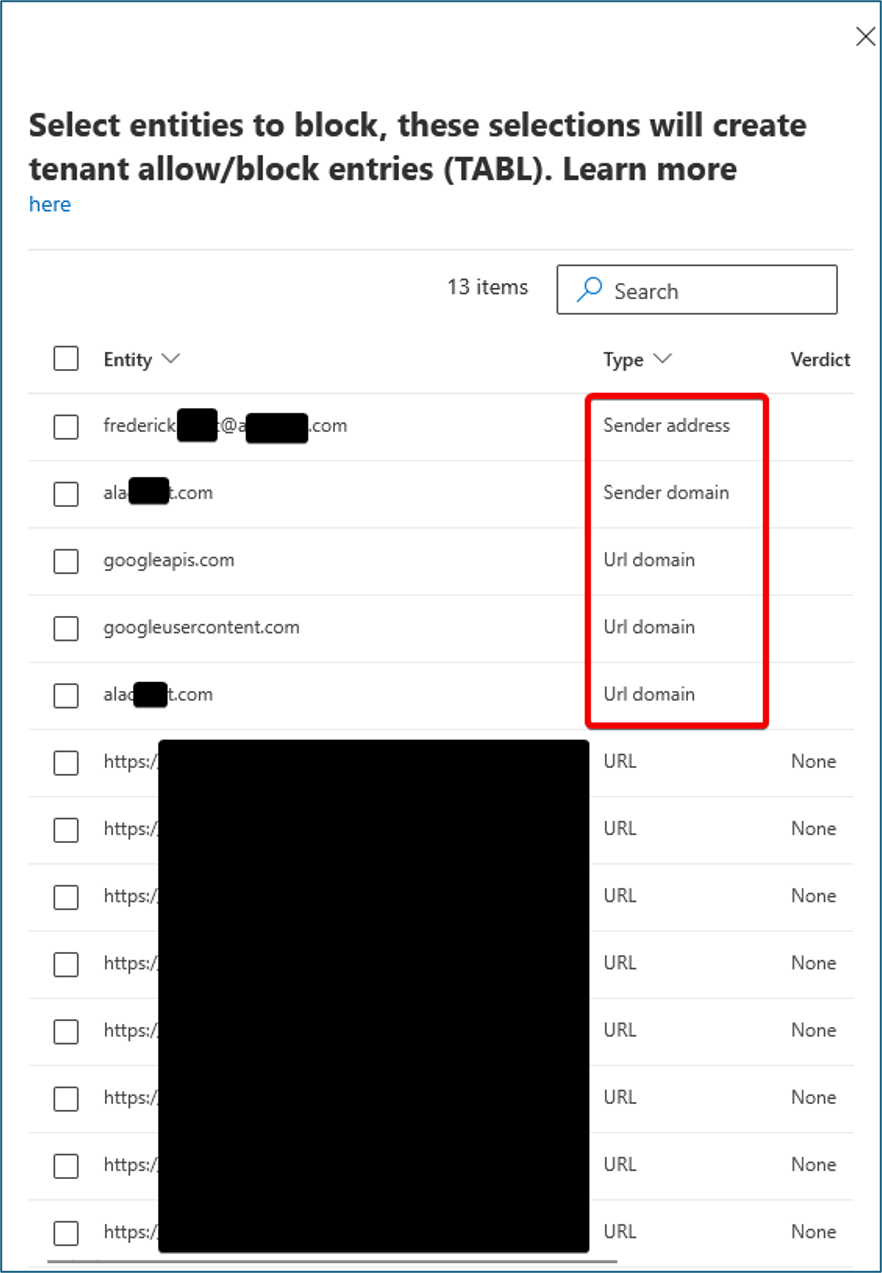
Assuming I select the items in red for block, here’s what happens:
- All future emails from that sender address will go to quarantine
- All future emails from that sender domain will go to quarantine
- For the URL domains; all future emails that contain URLs on that domain will go to quarantine, and if a user releases the email and clicks on one of those links, they’ll get a MS Defender warning in the browser if the source is Outlook or Teams
Combined with the actions I can take using MDO to remove the same bad email that exists in other mailboxes in my org, the actions to prevent similar emails are incredibly effective.
The Real Preventative Hardening#
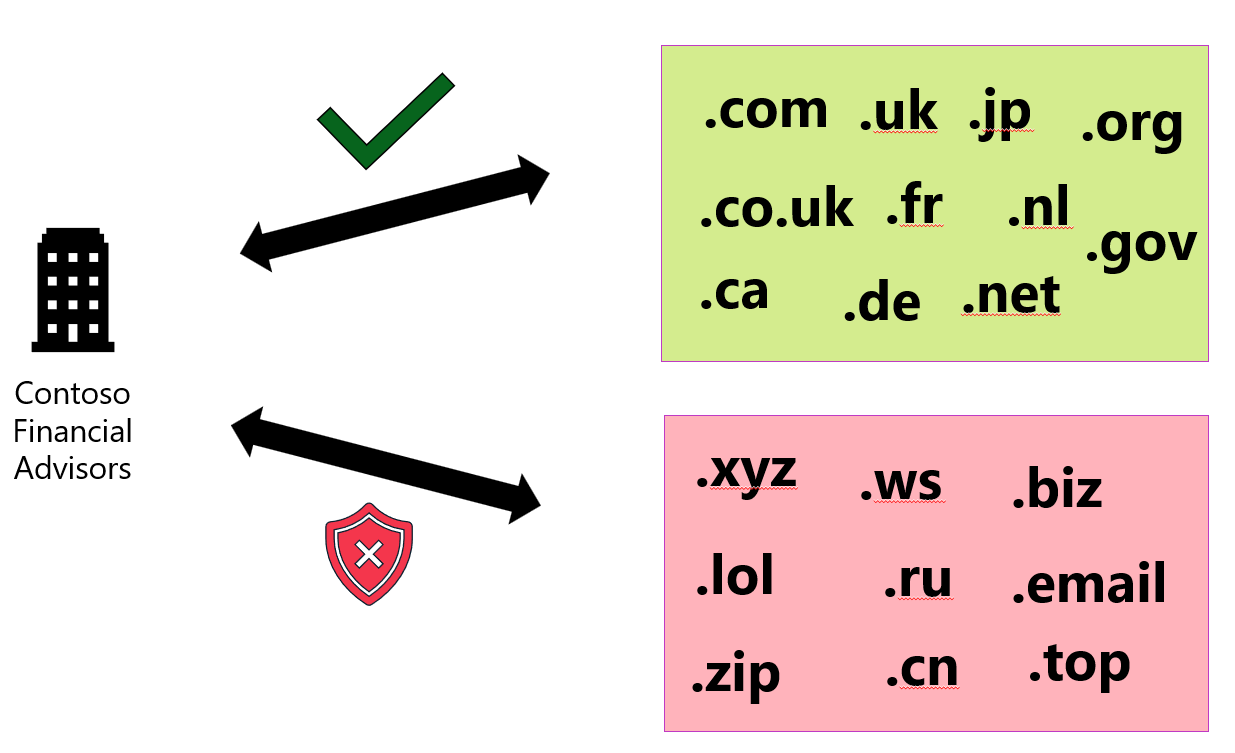
Why wait for Defender to make a verdict on email that is received from a list of Top Level Domains (TLDs) I never want to receive email from?
If Contoso Financial Advisors doesn't transact with bad domains in that list, block them.
How that looks in platform can be found at Policies & Rules -> Threat Policies -> Tenant Allow/Block list:
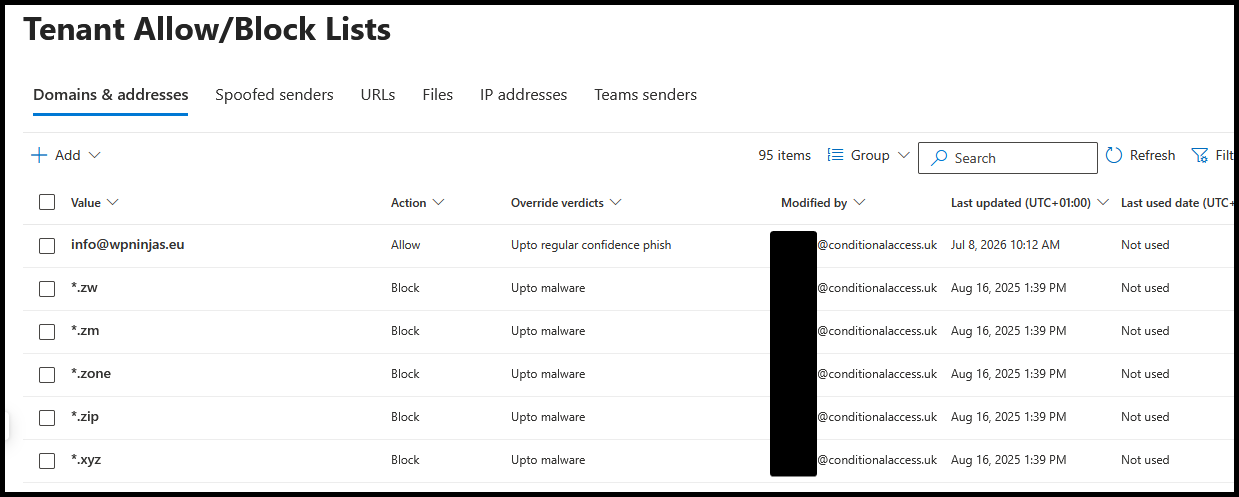
Here's a link to a large generic list of TLDs you might also consider undesirable for your users:
https://github.com/jkerai1/TLD-TABL-Block/blob/main/LargerCombinedBadTLDs.txt
And here is a link to a PowerShell script that uses the Exchange Online module to import said list:
The thing I want to call out here is the $exclusion variable. You must determine what in your org might already be using TLDs in that list so you don't impact productivity. Many sites and services use strange TLDs in their backend platforms which send email, like .support, .link for example.
TLD-TABL-Block/TABL-BlockTLD-Senders.ps1 at main · Lewis-Barry/TLD-TABL-Block
Advanced Hunting for Impact Analysis#
This is your best way of doing an impact assessment on whether or not people are relying on emails using those domains. The last tenant I did this on revealed that everything from a .xyz domain was going straight to spam anyway, so that was an easy decision.
If you've got MDO P2, this is really easy because you can use the KQL on that same page from Jay's GitHub:
let AbusedTLDs = externaldata(TLD: string)[@"https://raw.githubusercontent.com/jkerai1/TLD-TABL-Block/refs/heads/main/LargerCombinedBadTLDs.txt"] with (format="csv", ignoreFirstRecord=false);
EmailEvents
| where Timestamp > ago(30d)
| where isnotempty(SenderFromAddress)
| extend SenderDomain = tostring(split(SenderFromAddress, "@")[1])
| extend SenderTLD = tostring(split(SenderDomain, ".")[-1])
| where SenderTLD in (AbusedTLDs)
| project Timestamp, SenderFromAddress, SenderDomain, SenderTLD, RecipientEmailAddress, DeliveryAction, DeliveryLocation
Here's an example in my own, real tenant:
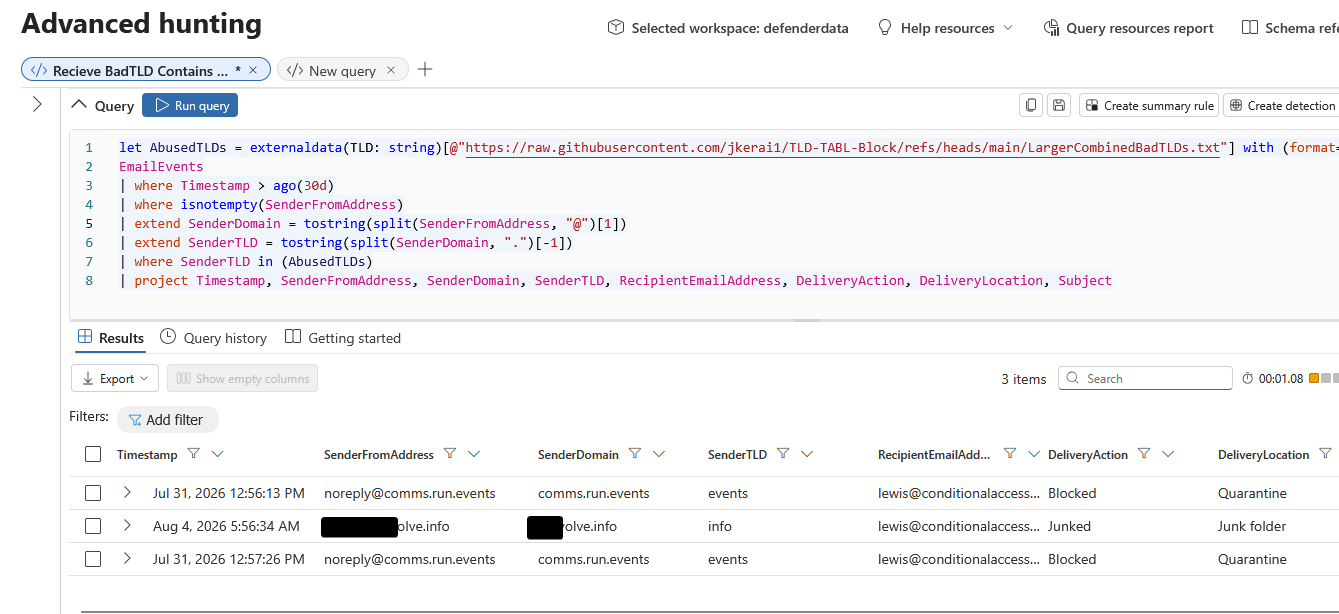
The "run.events" email is one I'd actually want to receive, so I need to go and figure out what is causing that block. This time it's not in my TABL.
One Step Further - URL Blocking#
Notice on that first TABL screenshot I'm showing Domains and Addresses? You do now.
The URLs tab is where it gets more interesting. If you populate that list, emails that contain those URL patterns in the body will go to quarantine. Imagine how many emails on a normal day are from a seemingly legitimate sender, but then contains a link to https://bigbeautifulwansomware[.]zip? It could be that the sender has been compromised.
Safe Links is supposed to take care of this at point-of-time click:
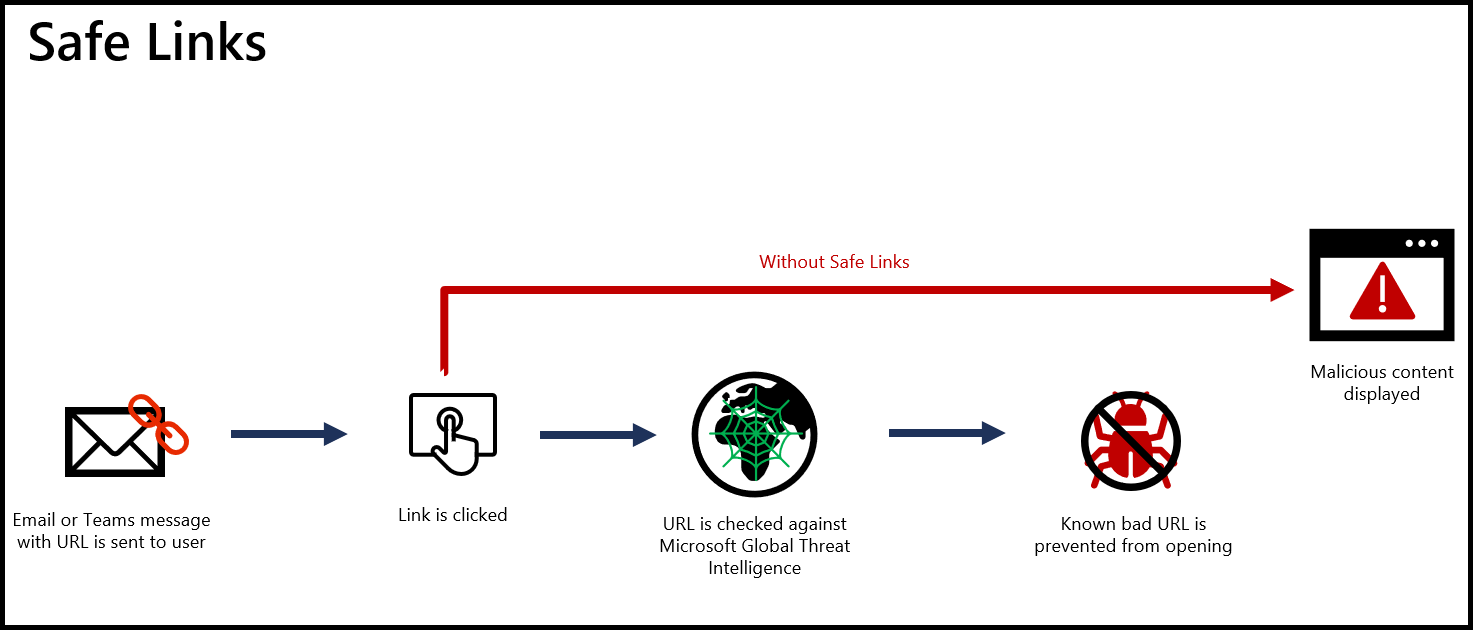
But sometimes zero days slip by and I make the point again, what's the point of waiting? Just block it as it's much easier to deal with a quarantine release than a hacked company:
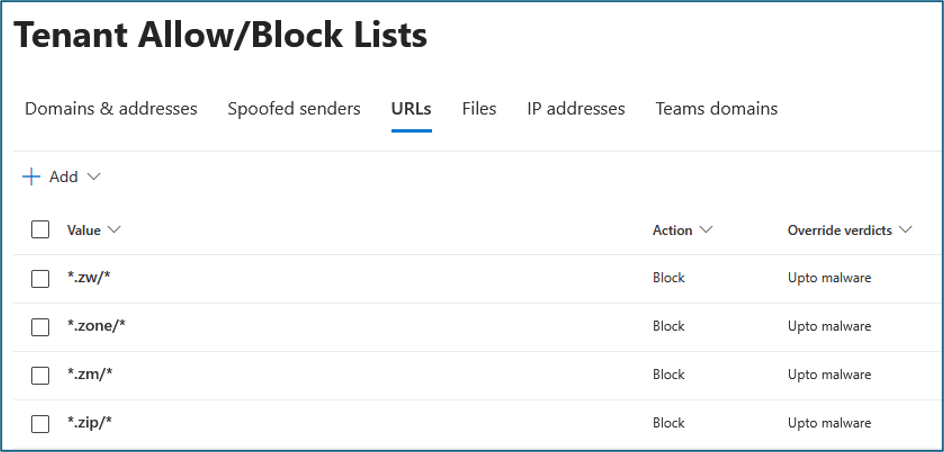
Here's the link for the PowerShell import
https://github.com/jkerai1/TLD-TABL-Block/blob/main/TABL-BlockTLD-URLs.ps1
#Install-Module ExchangeOnlineManagement
Import-Module ExchangeOnlineManagement
Connect-ExchangeOnline -ShowBanner:$false

# Fetch raw TLD list
$BlockList = Invoke-WebRequest -Uri 'https://raw.githubusercontent.com/jkerai1/TLD-TABL-Block/refs/heads/main/LargerCombinedBadTLDs.txt' -UseBasicParsing | Select-Object -ExpandProperty Content

# Review the list of URLs above (manually or KQL), then come back here to add/remove exclusions as necessary. NO RESPONSIBILITY IS TAKEN IF YOU CAUSE BUSINESS IMPACT.
$exclusion = @('info', 'example', 'biz', 'link', 'help', 'live', 'support')

foreach ($line in $BlockList.Split([Environment]::NewLine)) {
    $trimmedLine = $line.Trim()

    # Skip empty lines, comments, and excluded TLDs
    if (-not [string]::IsNullOrWhiteSpace($trimmedLine) -and -not $trimmedLine.StartsWith("#") -and $exclusion -notcontains $trimmedLine) {
        # Basic TLD validation
        if ($trimmedLine -match '^[a-z0-9]([a-z0-9-]{0,61}[a-z0-9])?$') {
            # Format for TABL URL blocking: *./*
            $urlPattern = "*.$trimmedLine/*".ToLowerInvariant()
            Write-Host "Blocking URL pattern: $urlPattern"
            New-TenantAllowBlockListItems -ListType Url -Block -Entries $urlPattern -NoExpiration -Notes "Blocked TLD per https://github.com/jkerai1/TLD-TABL-Block/tree/main"
        } else {
            Write-Warning "Skipping invalid TLD: '$trimmedLine'"
        }
    }
}