Over the years I've assessed and consulted on hundreds of Microsoft tenants across the following areas:
- M365 Admin Center
- Entra ID
- Intune
- SharePoint
- OneDrive
- Teams
- Purview
- Defender for Endpoint
- Defender for Office 365
- Defender for Cloud Apps
It's no surprise that by default a tenant is not secure. But it's even less of a surprise when you take over a tenant and it's been configured far worse than how it was created. I think the worst Microsoft Secure Score I've seen in production is about 20%.
For an interactive spreadsheet version of these checks that you can use in your own environments, see here
The role of the tenant#
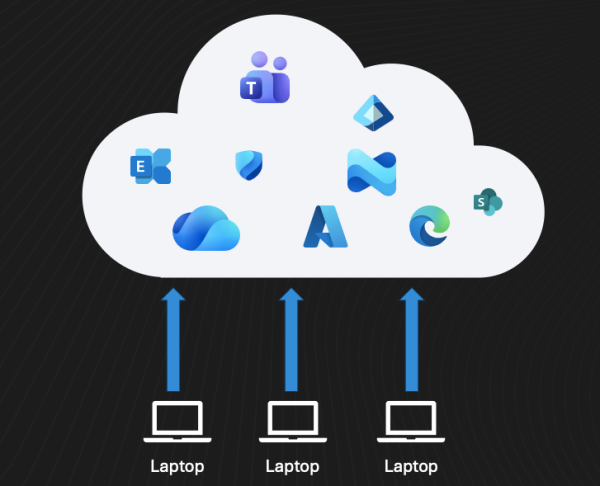
Many businesses see the benefit in consolidating and consuming more Microsoft services, as much of what they need is included in a bundle SKU they already have, or are actively evaluating. There are several upsides to this approach and I'm a big believer in using what you've got before you shop around for third-party add ons.
I, to the point of boring people (and not detecting any social cues to stop), vouch that M365 Business Premium is the single best technology subscription in existence in terms of price to value. I touched on this here.
Microsoft 365 Business Premium is not just a license - it is a lifestyle.
As we adopt more Microsoft we attach more business-critical dependants to their infrastructure.
- User accounts and login - Entra ID
- Enterprise apps - Entra ID
- Endpoint Management - Intune
- Full-stack security - Defender XDR
- Email - Exchange Online
- Files - SharePoint/OneDrive
- Governance - SharePoint/Purview
- Video conferencing - Teams
- Cloud Infrastructure - Azure
- + More
If you go all in on Microsoft, which a growing number of businesses are doing, it is vital you have a handle on securing the tenant.
The idea with this post is to somewhat scare you into either:
- Getting your shit together
- Getting your customer's shit together
Although it's a bit cringe and overused, "hackers don't hack, they log in" is actually true. An account takeover of any kind opens a business up to significant risk and unwanted paperwork if they follow due processes.
Section 1: Identity#
Entra ID#
As I've mentioned before in other posts, Entra ID is the single most important product you need to get a hold of if you want to prevent business compromise. If you hire a security consultant and they begin diving straight into other products in a security review, challenge them on it, or get a different consultant (unless your identity source is on-premises Active Directory, it's valid that they begin there).
Checks#
| Check conducted | Rationale |
| Ensure company branding is configured | Company branding reinforces what users should expect to see when logging in. Landing on an unbranded page should be a signal not to enter credentials. |
| Ensure standard users cannot create M365 Groups | Standard users can create groups and Teams by default, which may not follow company processes and can introduce clutter for administrators to manage. |
| Ensure standard users are prevented from browsing the Entra Portal | Following the principle of least privilege, preventing users from browsing the Entra Portal hides the tenant configuration structure from view. |
| Ensure standard users cannot create Security Groups | Standard users have no business need to create security groups, and allowing them to do so can make administration more difficult. |
| Ensure LinkedIn account connection is disabled | LinkedIn synchronisation could potentially expose users to unwanted personal data being visible across work systems. |
| Ensure collaboration invitations are restricted to allowed domains only (this is quite annoying and not necessarily a recommendation) | Limiting collaboration invites to approved domains only reduces the chance of unwanted data leaks to untrusted external parties. |
| Ensure guest user access is restricted | When guest access is restricted, guests can only view their own user profile. They cannot view other users or see the membership of groups they belong to. |
| Ensure standard users cannot create tenants | Creating tenants is a task that provides no benefit to standard users and could create unmanaged environments. |
| Ensure authentication methods migration is set to "Migration Complete" and per-user MFA settings are ignored | Migrating authentication methods to Entra is recommended before the per-user MFA options in the Microsoft Admin portal are deprecated. |
| Ensure legacy authentication is blocked | Modern authentication, based on ADAL and OAuth2, is a critical security component of Office 365. Legacy authentication creates a loophole that could allow unauthorised devices to connect and exfiltrate enterprise data. |
| Ensure users detected as high risk are blocked | This represents the probability that a user's identity has been compromised, calculated based on historical behaviour patterns, suspicious actions, and potential security indicators. |
| Ensure sign-ins detected as high risk are blocked | This indicates the probability that a specific authentication request was not authorised by the identity's owner, assessed in real time based on factors like unusual locations, unfamiliar devices, or anomalous travel patterns. |
| Ensure MFA is required for all users in all roles | MFA is the single most effective preventative technique for most instances of business compromise. |
| Ensure the number of Global Administrators is fewer than 5 | Global Administrator is the most privileged role in an M365 tenant. Users should not work with it unless there is a specific business requirement. More granular Entra ID roles should be used for specific functions. |
| Ensure PIM approval is required for the Global Administrator role | As Global Administrator is the most powerful role, additional approval and justification should be required when administrators need to elevate to it. |
| Ensure an App Protection Policy is required for Android and iOS | App Protection Policies ensure that business data can be controlled on personally owned devices, even without full device enrolment. |
| Ensure device compliance is required for Windows and macOS authentication | Restricting access to corporate data from corporate-owned devices only is one of the highest-impact security controls for reducing phishing success and data exfiltration. |
| Ensure no trusted IP addresses are configured to bypass MFA | Allowing locations to be trusted based on IP address means that credential compromise becomes significantly easier for attackers operating from those addresses. |
| Ensure an admin consent workflow is configured for applications | An admin consent workflow allows users to securely request access to necessary applications. Administrators can then review permissions and approve or deny based on a risk assessment. |
| Ensure user passwords are set to not expire | Password expiry leads people to create weak passwords. Modern guidance recommends only rotating passwords upon suspected compromise, combined with MFA. |
| Ensure privileged accounts are cloud-only without on-premises synchronisation | If a domain admin account is synced to the cloud and also has Global Administrator, it creates a path for two-way exploitation if either side is compromised. All admin roles should be kept separate. |
| Ensure only administrators can register applications | Application access presents a heightened security risk compared to interactive user access because applications are typically not subject to critical security protections such as MFA policies. |
| Ensure only administrators can consent to applications | Limiting application consent to specific privileged users reduces the risk of users granting insecure applications access to their data via consent grant attacks. |
| Ensure group owners cannot consent to applications | Group owners and team owners can consent to applications accessing data in the tenant by default. Requiring consent requests to go through an approval workflow reduces exposure to malicious applications. |
| Ensure Security Defaults are disabled in favour of Conditional Access policies | Conditional Access provides a more flexible and granular way of enforcing MFA than Security Defaults. Security Defaults must be disabled for Conditional Access policies to function. |
| Ensure a break-glass account is configured | A break-glass Global Administrator account should exist for emergency access if all other admin accounts are locked out. |
| Ensure users have Microsoft Authenticator set as their primary MFA method | Microsoft Authenticator is the most secure MFA method for Microsoft resources since it ties a physical device to the account, unlike SMS which can be intercepted or abused. |
| Ensure Microsoft Authenticator is configured to show login context information | Microsoft Authenticator can display additional context information for users to verify the login attempt is legitimate before approving. |
| Ensure password hash sync is enabled for hybrid deployments | Password hash synchronisation reduces the number of passwords users need to maintain and enables leaked credential detection for hybrid accounts. |
| Ensure Self-Service Password Reset is configured and targeted to all users | Self-Service Password Reset reduces the burden on helpdesks by letting users reset their own passwords after providing additional verification. |
| Ensure Privileged Identity Management is in use for all privileged roles |
Privileged Identity Management creates a paper trail and can require additional approval for user accounts to elevate for just-in-time access to certain roles. |
| Ensure sign-in with personal Microsoft accounts is blocked | Allowing personal account sign-in creates a risk of users exfiltrating company data to personal accounts accessible on unmanaged personal computers, with no IT visibility. |
| Ensure the break-glass account requires a strong authentication method (e.g. hardware security key) | While many opt for a long password alone, adding a hardware security key as a second factor ensures the account cannot be remotely compromised. |
| Ensure SMS is not permitted as an MFA method | SMS authentication can be abused by threat actors through SIM-swapping or targeted phishing aimed at intercepting one-time codes. |
| Ensure number matching is enabled for Microsoft Authenticator | Number matching is an approval technique introduced by Microsoft to reduce MFA fatigue attacks. The user signing in must see both screens and enter the matching numbers to proceed. |
Section 2: Email#
Defender for Office 365#
Plan 1 Included in M365, MDO is really powerful, even more so if you use the Tenant Allow Blocklist and begin blocking undesirable TLDs rather than waiting on verdicts
| Check conducted | Rationale |
| Ensure Safe Attachments is enabled for Exchange Online on all active business domains | Safe Attachments scans all inbound attachments for malware before they reach the user's mailbox. |
| Ensure Safe Attachments is set to Block mode for messages with detected malware | Detected malware should be blocked and held for administrator review rather than delivered to end users. |
| Ensure Safe Links is enabled for Exchange Online on all active business domains | Safe Links scans all URLs against a Microsoft-maintained list of known malicious links and takes action to prevent harm. |
| Ensure Safe Links is enabled for Teams and Office 365 apps | Safe Links protection can extend to Office 365 and Teams, protecting users across a wider range of collaboration apps. |
| Ensure Safe Links applies to emails sent within the organisation | Business Email Compromise originating from malicious links is one of the most common entry points for attackers. Enabling Safe Links for internal email adds an important layer of cyber defence. |
| Ensure Safe Links applies real-time URL scanning for suspicious links that point to files | Malicious links often point users to download harmful files from unknown sources. The Safe Links engine can be configured to check the destination before the file is accessed. |
| Ensure Safe Links does not allow users to click through to the original URL | Preventing users from clicking through to unscanned URLs protects them from accessing potentially harmful content before it has been verified. |
| Ensure the anti-phishing DMARC quarantine action sends email to quarantine | When a sender cannot be verified, DMARC rules should be followed to prevent the email from landing in the inbox. |
| Ensure the anti-phishing DMARC reject action rejects email | When a sender cannot be verified, DMARC rules should be followed to reject the email outright. |
| Ensure zero-hour auto purge is enabled for all message types in anti-spam policy | Zero-hour auto purge (ZAP) retroactively detects and neutralises malicious phishing messages that have already been delivered to Exchange Online mailboxes. |
| Ensure zero-hour auto purge (ZAP) is enabled for anti-malware | ZAP retroactively detects and neutralises malicious messages that have already been delivered to Exchange Online mailboxes. |
| Ensure a valid SPF record exists without errors for each active business domain | SPF is crucial to ensure outbound email is legitimately sent and arrives at the recipient without being caught in destination spam filters. |
| Ensure a DKIM record exists for each active business domain | DKIM is an additional outbound email validation technique that improves email delivery reliability and authenticity. |
| Ensure the DMARC policy is set to quarantine or reject for 100% of email on each active business domain | DMARC assesses the validity of both SPF and DKIM and delivers a verdict for the recipient server on how to handle unauthenticated email. |
| Ensure Safe Links is configured to track user clicks for reporting | Tracking user clicks allows administrators to investigate common sources of potential phishing campaigns and identify at-risk users. |
| Ensure anti-spam quarantine retention is set to 30 days | Retaining quarantine items for 30 days allows enough time for user review and for administrators to spot trending malicious patterns. |
| Ensure Safe Links waits for URL scanning to complete before delivering the message | To reduce the chance of a user clicking a harmful URL, the service should finish its check before the link is made available for user interaction. |
| Ensure the anti-phishing threshold is set to 3 or higher | A threshold of 3 or higher provides a more aggressive stance, aiming to prevent more phishing attempts than the standard setting. |
| Ensure anti-phishing user impersonation protection is enabled for key stakeholders | User impersonation protection allows administrators to create a list of high-value targets likely to be impersonated. If a message arrives where the sender only appears to match a protected account, it is flagged or quarantined. |
| Ensure anti-phishing domain impersonation protection is enabled for active business domains | Domain impersonation protection detects domains that are similar to the recipient's domain and that attempt to look like an internal domain, helping catch sophisticated spoofing attempts. |
| Ensure anti-phishing mailbox intelligence is enabled | Mailbox intelligence learns from standard user email behaviours and leverages the communication graph to detect when a sender only appears to be someone the user usually communicates with. |
| Ensure anti-phishing mailbox intelligence for impersonation detection is enabled | Mailbox intelligence for impersonation detection enhances results based on each user's individual sender map, helping to identify more subtle impersonation attempts. |
| Ensure anti-phishing spoof intelligence is enabled | Spoof intelligence filters those allowed to send mail on behalf of another account from malicious senders who imitate organisational or known external domains. |
| Ensure the anti-phishing impersonated user action sends email to quarantine | Sending impersonated user email to quarantine removes it from the user's mailbox for more considered review and release by an administrator. |
| Ensure the anti-phishing impersonated domain action sends email to quarantine | Sending impersonated domain email to quarantine removes it from the user's mailbox for more considered review and release by an administrator. |
| Ensure the anti-phishing mailbox intelligence detection action sends email to quarantine | Sending mailbox intelligence detections to quarantine removes them from the user's mailbox for more considered review and release by an administrator. |
| Ensure the anti-phishing first contact safety tip is enabled | The first contact safety tip notifies users of emails from new senders, drawing attention to someone who might be impersonating a familiar contact. |
| Ensure the anti-phishing user impersonation safety tip is enabled | The user impersonation tip notifies users of a possible impersonation of someone they usually receive email from. |
| Ensure the anti-phishing domain impersonation safety tip is enabled | The domain impersonation tip notifies users of a possible impersonation of a domain they usually receive email from. |
| Ensure the anti-phishing unusual characters safety tip is enabled | This tip flags messages where the From address contains unusual character sets (such as mathematical symbols or mixed-case letters) in a sender specified in user impersonation protection. |
| Ensure the anti-phishing unauthenticated senders symbol for spoof is enabled | Adding a question mark to the sender's photo in the From box alerts users when the message does not pass SPF or DKIM checks and fails DMARC or composite authentication. |
| Ensure the anti-phishing "via" tag is enabled | The "via" tag in the From box alerts users when the domain in the From address differs from the domain in the DKIM signature or the MAIL FROM address. |
| Ensure the anti-phishing policy honours DMARC policy | Honouring the sender's DMARC policy ensures explicit email authentication failures are handled according to the domain owner's published instructions. |
| Ensure the anti-spam bulk email action is enabled | EOP assigns a bulk complaint level (BCL) to inbound messages from bulk senders, similar to the spam confidence level (SCL) used to identify messages as spam. |
| Ensure the anti-spam bulk email threshold is set to 6 or lower | A lower threshold value is more restrictive, meaning more messages are flagged as likely spam (BCL scores range up to 9). |
| Ensure the anti-spam action moves messages to junk email folder or quarantine | Sending flagged content to junk or quarantine adds an extra layer of caution so the user can make a better-informed decision about the email. |
| Ensure the anti-spam high confidence spam action moves messages to junk email folder or quarantine | Sending flagged content to junk or quarantine adds an extra layer of caution so the user can make a better-informed decision about the email. |
| Ensure the anti-spam phishing action moves messages to junk email folder or quarantine | Sending flagged content to junk or quarantine adds an extra layer of caution so the user can make a better-informed decision about the email. |
| Ensure the anti-spam high confidence phishing action moves messages to quarantine | Sending high confidence phishing to quarantine removes the most dangerous content from the user's view entirely, requiring administrator release. |
| Ensure the anti-spam BCL threshold action moves messages to junk folder when met or exceeded | Sending flagged content to junk or quarantine adds an extra layer of caution so the user can make a better-informed decision about the email. |
| Ensure anti-spam safety tips are enabled | Spam safety tips display additional information when suspected spam is identified, allowing users to make a more informed decision about the email content. |
| Ensure outbound anti-spam policy notifies admins when a sender is blocked for sending spam | Notifying administrators when a sender is blocked helps detect possible compromise originating from within the tenant, alerting to situations where sending limits are being exceeded. |
| Ensure the anti-malware common attachments filter is enabled | Threat actors may attempt low-effort malware delivery using common attachment types that are not typically used in normal business communications. Blocking these prevents abuse. |
| Ensure the anti-malware action for common attachments sends an NDR to the sender | Sending an NDR outright blocks any inbound delivery of emails that contain the common attachment types specified in the block list. |
| Ensure an anti-malware policy exists to quarantine archive file types | Quarantining archive file types adds another layer of security by making end users more carefully consider whether they were expecting an email with that attachment type. |
Section 3: Device#
Browsers#
Your first priority here should be to reduce the total number of applications within your business, this extends to browsers.
If you are a Microsoft house, it makes sense to use MS Edge. There is little or no justification to deploy and use Google Chrome.
With people spending an increasing amount of time in the browser, the time to protect them was yesterday. High priority items are things like Extension/Addon allow listing and profiles, sync & sign in.
| Check conducted | Rationale |
| Ensure automatic updates are enabled for Firefox | Automatic updates ensure security patches are delivered promptly when needed. |
| Ensure extension updates are enabled for Firefox | Extension updates ensure security patches are delivered promptly when needed. |
| Ensure Firefox prompts for a download location | Prompting for a download location prevents files from automatically appearing in the downloads folder, which could be initiated by a malicious site. |
| Ensure an allowed extension list is configured for Firefox | An allowed extension list prevents unwanted extensions from being installed. Extensions like PDF converters or screenshot tools could exfiltrate company data. |
| Ensure Firefox accounts are disabled | Preventing personal account login restricts company data to the company device. |
| Ensure automatic updates are enabled for Chrome | Automatic updates ensure security patches are delivered promptly when needed. |
| Ensure third-party cookies are blocked on Google Chrome | Chrome allows cookies from domains other than the one in the address bar. Blocking third-party cookies prevents external tracking and potential data leakage. |
| Ensure personal account synchronisation is blocked on Google Chrome | Preventing personal account login restricts company data to the company device. |
| Ensure an allowed extension list is configured on Google Chrome | An allowed extension list prevents unwanted extensions from being installed. Extensions like PDF converters or screenshot tools could exfiltrate company data. |
| Ensure automatic updates are enabled for Edge | Automatic updates ensure security patches are delivered promptly when needed. |
| Ensure an allowed extension list is configured on Microsoft Edge | An allowed extension list prevents unwanted extensions from being installed. Extensions like PDF converters or screenshot tools could exfiltrate company data. |
| Ensure personal account synchronisation is blocked on Microsoft Edge | Preventing personal account login restricts company data to the company device. |
| Ensure Pocket is disabled for Firefox | Firefox Pocket could be used to exfiltrate company data and is not required for business purposes. |
| Ensure sending unencrypted passwords to third-party SMB servers is disabled on Google Chrome | SMB servers are commonly used for file sharing and network communication. Transmitting passwords in an unencrypted form to third-party SMB servers could lead to data breaches and security vulnerabilities. |
| Ensure Microsoft Defender SmartScreen is enabled |
Microsoft Defender SmartScreen provides an early warning system against websites that might engage in phishing attacks or distribute malware through targeted attacks. |
Exchange Online#
| Check conducted | Rationale |
| Ensure shared mailboxes are blocked from signing in | Shared mailboxes can technically be directly accessed, although there is no need for direct sign-in. Blocking sign-in prevents potential misuse. |
| Ensure the AuditDisabled organisation setting is set to False | Auditing mailbox actions allows forensics and incident response teams to trace various malicious activities such as inbox access and tampering. |
| Ensure mailbox auditing is enabled | Mailbox audit logging tracks logons to a mailbox as well as actions taken while the user is logged in, providing valuable forensic data. |
| Ensure all forms of mail forwarding are blocked or disabled | Automatic mail forwarding is often a common indicator that an internal mailbox has been compromised. Disabling it also prevents potential data loss through unauthorised forwarding. |
| Ensure mail transport rules do not whitelist specific domains | Allowing an entire domain through transport rules could present a risk if a business you communicate with is compromised. |
| Ensure external email tagging is enabled | An external email tag in Outlook warns recipients that the email is from an external sender, helping them identify potential internal spoofing attempts. |
| Ensure users cannot install Outlook add-ins | Allowing users to install unauthorised add-ins could expose corporate data to third parties without administrator oversight. |
| Ensure Defender for Office and Exchange Online alerts are sent to an administrator email address | Administrators can be alerted to incidents originating from Exchange Online and Defender for Office 365, enabling faster response. |
Intune#
The shortcut here is to simply deploy openintunebaseline.com for the core hardening of Windows.
There are, however, sections of Intune that aren't covered by configurable settings and instead require manual checking of toggles, knobs, and switches.
| Check conducted | Rationale |
| Ensure Offer Remote Assistance is disabled | A user could be tricked into accepting an unsolicited Remote Assistance offer from a malicious party, granting them access to the system. |
| Ensure Password Manager is disabled via policy | Chrome can be used to synchronise passwords out of the business to personally owned accounts, creating an unmanaged data leakage path. |
| Ensure the SMBv1 client driver is disabled | SMBv1 is a legacy protocol that uses the MD5 algorithm, which is vulnerable to collision and preimage attacks and is not FIPS compliant. |
| Ensure the SMBv1 server is disabled | SMBv1 is a legacy protocol that uses the MD5 algorithm, which is vulnerable to collision and preimage attacks and is not FIPS compliant. |
| Ensure Solicited Remote Assistance is disabled | Solicited Remote Assistance allows a user to request help, but this may grant unauthorised parties access to the resources on the computer. |
| Ensure Microsoft Defender Antivirus scanning of downloaded files and attachments is enabled | Microsoft Defender should scan all inbound downloaded files and attachments as part of a strong security routine. |
| Ensure Network Protection is enabled in Block Mode | Network Protection helps prevent employees from using any application to access dangerous domains that might host phishing scams, exploits, and other malicious content. |
| Ensure scanning of removable drives is enabled during a full scan | External drives pose a high risk to business due to potentially malicious contents. This policy ensures they are scanned upon insertion. |
| Ensure the default Autorun behaviour is set to not execute any autorun commands | Disabling AutoRun command execution prevents malware and unauthorised programs from automatically running when removable media or network shares are connected. |
| Ensure Microsoft Defender SmartScreen for app and file checking is set to block or warn | Microsoft Defender SmartScreen in Windows provides reputation-based protection against malicious apps and websites. It can be configured to block or warn users about potentially harmful files. |
| Ensure Microsoft Defender SmartScreen for Edge site and download checking is set to block or warn | Configuring SmartScreen to block or warn in Edge can prevent unwanted downloads of potentially malicious files. |
| Ensure non-Microsoft accounts cannot be added to Outlook | Allowing unapproved accounts to be added to Outlook creates a path for data exfiltration outside the organisation. |
| Ensure all devices have an Autopilot deployment profile targeted to them | Devices without an Autopilot profile assigned will skip device naming templates and Standard User account provisioning during setup. |
| Ensure the Autopilot deployment profile enforces Standard User accounts | End users having local administrator rights at all times significantly increases risk and decreases the effectiveness of company-managed security controls. |
| Ensure enrolment of personally owned devices is blocked (Platform Restrictions) | Allowing users to enrol personal devices enables them to have administrator rights on a device not owned by the company, with access to corporate data. |
| Ensure Autoplay is disabled for all devices | Preventing automatic actions when media is inserted stops potentially malicious programs from launching without user interaction. |
| Ensure outdated ActiveX controls are blocked for Internet Explorer | Many ActiveX controls are not automatically updated as new versions are released. Outdated ActiveX controls are a common target for malicious or compromised webpages. |
| Ensure all BitLocker-supported OS drives are encrypted | Hard drive encryption is a necessary step to reduce the likelihood of unauthorised data access if a corporate device is lost or stolen. |
| Ensure writing to USB storage devices is disabled on all devices | With many internet-based alternatives for file sharing that require authentication, blocking USB writing prevents data from being exfiltrated to potentially unsecure USB devices. |
| Ensure OneDrive account sync to personal accounts is blocked | Allowing non-company accounts to sync with OneDrive creates an easy route for data exfiltration outside the organisation. |
| Ensure enforced updates are enabled for Microsoft 365 Applications | Enforcing updates ensures security patches are delivered promptly when they are needed. |
| Ensure Cloud Update is configured for Microsoft Office updates | Cloud Update automates and enforces security and feature updates while keeping all users on the same Microsoft Office channel. |
| Ensure all devices are targeted with a Windows Update for Business Update Ring | All active computers should have an automated method of receiving security and feature updates through a managed update ring. |
| Ensure quality updates are delivered no more than 7 days after release | All active computers should have an automated method of receiving quality updates within a timely window after release. |
| Ensure feature updates are delivered no more than 14 days after release | All active computers should have an automated method of receiving feature updates within a timely window after release. |
| Ensure deadline settings enforce update installation no more than 2 days after delivery | Deadline settings enforce reboots to ensure computers apply patches in a timely manner, reducing the window of vulnerability. |
| Ensure an Intune App Protection Policy is configured for Android | App Protection Policies ensure that business data can be controlled on personally owned Android devices. |
| Ensure an Intune App Protection Policy is configured for iOS | App Protection Policies ensure that business data can be controlled on personally owned iOS devices. |
| Ensure the MAM policy prevents rooted device access on Android | Rooted devices may bypass security controls and are not officially supported by genuine hardware vendors, making them a risk to corporate data. |
| Ensure automatic OS updates are enforced on Android | Automatic OS updates ensure security patches are delivered promptly when needed on Android devices. |
| Ensure the lock screen is configured on Android | Configuring the lock screen helps protect sensitive data by preventing unauthorised access to the device when it is unattended. |
| Ensure biometric or password unlock is configured on Android | Requiring biometric or password unlock gives users a choice of authentication method. Biometric provides an additional layer of identity verification. |
| Ensure the lock screen timeout is set to 5 minutes or less on Android | Configuring the lock screen timeout helps protect sensitive data by preventing unauthorised access to the device when it is unattended. |
| Ensure the MAM policy prevents jailbroken device access on iOS | Jailbroken devices may bypass security controls and are not officially supported by genuine hardware vendors, making them a risk to corporate data. |
| Ensure automatic OS updates are enforced on iOS | Automatic OS updates ensure security patches are delivered promptly when needed on iOS devices. |
| Ensure the lock screen is configured on iOS | Configuring the lock screen helps protect sensitive data by preventing unauthorised access to the device when it is unattended. |
| Ensure biometric or password unlock is configured on iOS | Requiring biometric or password unlock gives users a choice of authentication method. Biometric provides an additional layer of identity verification. |
| Ensure the lock screen timeout is set to 5 minutes or less on iOS | Configuring the lock screen timeout helps protect sensitive data by preventing unauthorised access to the device when it is unattended. |
| Ensure Basic authentication is disabled for WinRM Service | When Basic authentication is enabled for WinRM Service, credentials are transmitted in a way that can be intercepted. Disabling it forces the use of more secure authentication methods. |
| Ensure the timezone is set correctly via policy | Having the correct timezone set is necessary for many applications to function properly and for accurate audit log timestamps. |
| Ensure the Autopilot deployment profile has a device naming convention set | A naming convention helps IT departments manage their device inventory and enables quicker troubleshooting when issues arise. |
| Ensure Health Sync reports are configured for OneDrive | Health Sync reports give administrators visibility into where OneDrive is not up to date or where synchronisation errors are occurring for end users. |
| Ensure 64-bit Office is deployed as standard | For modern systems, Microsoft recommends deploying 64-bit Office 365 applications for better performance and memory handling. |
| Ensure applications are deployed as Win32 or New Store packages | The .MSI and Win32 app deployment types compete for system-level privileges upon installation. Packaging custom apps consistently as Win32 or New Store packages avoids conflicts. |
| Ensure Company Portal is deployed for all users | Self-service app installation from Company Portal saves helpdesk time by making approved business applications directly available to end users. |
| Ensure Basic authentication is disabled for WinRM Client | When Basic authentication is enabled for WinRM Client and HTTP transport is used, the username and password are sent over the network as clear text. |
| Ensure 'Always install with elevated privileges' is disabled | This setting allows a standard user to install MSI packages with system privileges, which can be exploited by an attacker to escalate privileges and perform malicious actions. |
| Ensure anonymous enumeration of SAM accounts is disabled | Anonymous enumeration of SAM accounts allows null session connections to list all account names, providing a list of potential attack targets. |
| Ensure anonymous enumeration of shares is disabled | Anonymous enumeration of shares allows null session connections to list all shared resources, providing a map of potential attack points on the system. |
| Ensure 'Disable machine account password changes' is turned off for domain members | Disabling automatic machine account password changes makes the system more vulnerable. Frequent password rotation is an important safeguard. |
| Ensure 'Enumerate administrator accounts on elevation' is disabled | Displaying a list of administrator accounts during elevation provides part of the logon information to unauthorised users, making attacks easier. |
| Ensure insecure guest logons are disabled in SMB | Insecure guest logons allow unauthenticated access to shared folders, enabling retrieval of sensitive data and placement of malicious files. |
| Ensure installation and configuration of Network Bridge is disabled on the DNS domain network | Network Bridge allows users to create a layer 2 MAC bridge connecting network segments, potentially allowing unauthorised access or exposure of sensitive data across segments. |
| Ensure IP source routing is disabled | Disabling IP source routing protects against IP address spoofing attacks. |
| Ensure merging of local Defender Firewall connection rules with group policy rules is disabled for the Public profile | Users with administrative privileges might create local firewall rules that expose the system to remote attacks, bypassing centrally managed group policy rules. |
| Ensure 'Let Everyone permissions apply to anonymous users' is disabled for network access | This setting controls whether anonymous network users have the same rights and permissions as the built-in Everyone group. Disabling it restricts anonymous access. |
| Ensure 'Store LAN Manager hash value on next password change' is disabled | The LAN Manager hash uses a weak encryption algorithm and multiple tools exist that can retrieve account passwords from it. |
| Ensure the built-in Guest account is disabled | The built-in Guest account should be disabled to prevent unauthenticated access to the system. |
| Ensure local storage of passwords and credentials is disabled | Credential Manager can save passwords or credentials locally for later use, creating a target for credential theft during domain authentication. |
| Ensure WDigest Authentication is disabled | When WDigest Authentication is enabled, plain-text passwords are stored in the LSASS process, exposing them to theft. Disabling this setting prevents WDigest from storing credentials in memory. |
| Ensure UAC restrictions are applied to local accounts on network logons | With UAC enabled, filtering the privileged token for built-in administrator accounts prevents elevated privileges from being used over the network. Note: this is not applicable if using LAPS for local account management. |
| Ensure 'Digitally encrypt or sign secure channel data (always)' is enabled for domain members | Requests sent on the secure channel are authenticated but not all information is encrypted. Enabling this policy ensures outgoing secure channel traffic is both encrypted and signed. |
| Ensure 'Digitally sign secure channel data (when possible)' is enabled for domain members | Enabling digital signing of secure channel data when possible provides additional integrity protection for domain member communications. |
| Ensure strong session keys (Windows 2000 or later) are required for domain members | Requiring strong session keys enforces 128-bit encryption between systems when a computer connects to a domain controller via the secure channel. |
| Ensure Data Execution Prevention (DEP) is enabled for Explorer | Data Execution Prevention (DEP) is a built-in Windows technology that prevents executable code from launching from memory locations where it should not run. |
| Ensure blank password use for local accounts is limited to console logon only | Requiring a non-blank password for local accounts performing interactive or network logons from remote clients prevents unauthenticated access via blank passwords. |
| Ensure Local Admin password management (LAPS) is enabled | Windows LAPS automatically manages and backs up local administrator account passwords on Entra-joined or Active Directory-joined devices, preventing password reuse and stale credentials. |
| Ensure Local Security Authority (LSA) protection is enabled | LSA protection validates users for local and remote sign-ins and enforces local security policies. Protecting the LSASS process prevents credential extraction attacks. |
| Ensure 'Microsoft network client: Digitally sign communications (always)' is enabled | Enabling this policy ensures the SMB client only communicates with servers that perform SMB packet signing, protecting against man-in-the-middle attacks. |
| Ensure 'Require additional authentication at startup' is enabled for BitLocker | This policy configures whether BitLocker requires additional authentication each time the computer starts and whether a Trusted Platform Module (TPM) is used. |
| Ensure domain users are required to elevate when setting a network location | Selecting an incorrect network location may allow greater system exposure. Requiring elevation to change network location prevents standard users from weakening the firewall profile. |
| Ensure Safe DLL Search Mode is enabled | Enabling Safe DLL Search Mode forces the system to search the system directory for DLLs before searching the current directory or the rest of the path, preventing DLL hijacking. |
| Ensure 'Digitally encrypt secure channel data (when possible)' is enabled for domain members | Enabling encryption of secure channel data when possible ensures outgoing domain member communications are encrypted, protecting sensitive information like passwords. |
| Ensure Internet Connection Sharing is prohibited on the DNS domain network | Non-administrators should not be able to enable Mobile Hotspot and open their internet connectivity to nearby mobile devices, creating an unmanaged network bridge. |
| Ensure anonymous access to named pipes and shares is restricted | Restricting anonymous access to named pipes and shares prevents unauthorised system access through these common communication channels. |
| Ensure the account lockout duration is set to 15 minutes or more | An account lockout duration of 15 minutes or more protects against brute-force attacks by temporarily disabling compromised accounts while minimising user disruption through automatic unlocking. |
| Ensure the account lockout threshold is set to between 1 and 10 invalid login attempts | Setting the lockout threshold between 1 and 10 attempts protects against automated password guessing and brute-force attacks, balancing security with user accessibility. |
| Ensure controlled folder access is set to enabled or audit mode | Controlled folder access protects against ransomware and malicious file modifications by monitoring which applications can access protected folders, while audit mode allows review of potential unauthorised attempts. |
| Ensure the interactive logon machine inactivity limit is set to 900 seconds or less | Configuring a machine inactivity limit ensures unattended authenticated sessions are automatically locked after a defined period, reducing the risk of unauthorised access. |
| Ensure IPv6 source routing is set to the highest protection level | Disabling IPv6 source routing protects against IP address spoofing attacks using the IPv6 protocol. |
| Ensure the LAN Manager authentication level is set to send NTLMv2 responses only and refuse LM and NTLM | Kerberos v5 is the default authentication protocol for domain accounts. NTLM, which is less secure, is retained for compatibility but should be restricted to NTLMv2 responses only. |
| Ensure the Remote Desktop security level is set to TLS | Setting Remote Desktop security to TLS enforces strong encryption and authentication for all remote desktop connections, protecting against eavesdropping and man-in-the-middle attacks. |
| Ensure 'Reset account lockout counter after' is set to 15 minutes or more | Setting the lockout counter reset to 15 minutes or more complements the lockout duration, ensuring the failed login counter resets only after enough time has passed to deter sustained password-guessing attacks. |
| Ensure Network Level Authentication is enabled for remote desktop connections | Network Level Authentication (NLA) requires the client to be authenticated before establishing an RDP session, preventing unauthorised connection attempts. |
| Ensure the creation of PST files is prevented | Email archiving should move to cloud solutions to prevent data exfiltration via local PST files, or data loss due to system malfunction. |
| Ensure Event Viewer audit logs are configured for account logons and other security events | Logging additional security events provides more data for troubleshooting and cyber forensic activities during incident investigations. |
| Ensure Windows Hello for Business is configured for PIN or biometric use with TPM required | Windows Hello for Business is a valid MFA method that simplifies the user experience compared to repeated password entry. Requiring TPM ties authentication to the physical device. |
| Ensure all devices have checked in within the last 90 days | Keeping the device inventory current prevents reaching licence limits and improves overall compliance scores. Devices reported as lost should be removed promptly. |
| Ensure the device enrolment limit is set to 5 or fewer | Setting an enrolment limit prevents device management from getting out of control and ensures only relevant, active devices are managed in the Intune tenant. |
| Ensure deployed applications are relevant and use up-to-date packages | Unpatched third-party software presents operational risk to a business and should be updated as soon as possible. |
| Ensure threat scanning on apps is set to required on Android | Threat scanning performs basic security checks on downloaded apps to ensure they do not contain known malware or exploits. |
Defender for Endpoint + Firewall#
DFE is really good - https://conditionalaccess.uk/blog/microsoft-defender-is-good-enough/.
It has many components, and for best results, configure as many of them as possible
| Check conducted | Rationale |
| Ensure the ASR rule to block abuse of exploited vulnerable signed drivers is enabled | This rule prevents applications from writing vulnerable signed drivers to disk. Vulnerable signed drivers can be exploited by local applications with sufficient privileges to gain kernel access. |
| Ensure the ASR rule to block executable content from email clients and webmail is enabled | This rule blocks emails opened in Microsoft Outlook or popular webmail providers from propagating executables or script files. |
| Ensure the ASR rule to block executable files unless they meet prevalence, age, or trusted list criteria is enabled | This rule blocks executable files such as .exe, .dll, or .scr from launching. Running untrusted or unknown executable files can be risky, as it may not be immediately clear whether the files are malicious. |
| Ensure the ASR rule to block execution of potentially obfuscated scripts is enabled | Script obfuscation is a common technique used by both malware authors and legitimate applications to hide intellectual property or decrease script loading times. |
| Ensure the ASR rule to block JavaScript or VBScript from launching downloaded executable content is enabled | Malware written in JavaScript or VBScript often acts as a downloader to fetch and launch additional malware from the internet. |
| Ensure the ASR rule to block process creations originating from PSExec and WMI commands is enabled | This rule blocks processes created through PsExec and WMI from running. Both tools can remotely execute code, and malware can abuse this functionality for command and control or to spread infections across a network. |
| Ensure the ASR rule to block untrusted and unsigned processes that run from USB is enabled | This rule prevents unsigned or untrusted executable files (such as .exe, .dll, or .scr) from running from USB removable drives, including SD cards. |
| Ensure Cloud Protection is enabled for Microsoft Defender | Cloud-delivered protection provides critical defence against malware on endpoints and across the network. Without it, endpoints and the network remain vulnerable to malware. |
| Ensure real-time monitoring is enabled for Microsoft Defender | Always-on scanning uses file and process behaviour monitoring alongside other heuristics to detect threats in real time. |
| Ensure archive scanning is enabled for Microsoft Defender | Archive scanning allows Microsoft Defender to inspect compressed files such as .zip or .rar for threats. |
| Ensure email scanning is enabled for Microsoft Defender | Email scanning enables inspection of email files used by Outlook and other mail clients during on-demand and scheduled scans. |
| Ensure network file scanning is enabled for Microsoft Defender | Network file scanning allows Microsoft Defender to scan files stored on network shares for threats. |
| Ensure script scanning is enabled for Microsoft Defender | Script scanning allows Microsoft Defender to inspect scripts for malicious content before they execute. |
| Ensure Cloud Block Level is set to High for Microsoft Defender | A high cloud block level applies a strong level of detection while optimising client performance. |
| Ensure Microsoft Defender Antivirus is turned on | Microsoft Defender Antivirus must be turned on for all other configuration options to function effectively. |
| Ensure Microsoft Defender Credential Guard is turned on | Credential Guard uses virtualisation-based security (VBS) to isolate secrets. Previous Windows versions stored secrets in the LSASS process memory, making them vulnerable to extraction. |
| Ensure the Microsoft Defender for Endpoint sensor is turned on | The Microsoft Defender for Endpoint sensor is a prerequisite for Defender for Endpoint to function. |
| Ensure real-time protection is turned on | Real-time protection ensures actions and known malicious file signatures are analysed by the Microsoft Defender cloud service to take appropriate action immediately. |
| Ensure Tamper Protection is turned on | Tamper Protection locks and prevents modification of core Defender Antivirus settings and controls by other systems. |
| Ensure EDR in Block Mode is turned on | EDR in block mode provides added protection from malicious artefacts when Microsoft Defender Antivirus is not the primary antivirus product and is running in passive mode. |
| Ensure advanced protection against ransomware is enabled | This rule provides an extra layer of protection against ransomware using both client and cloud heuristics to determine whether a file resembles ransomware. |
| Ensure the ASR rule to block Adobe Reader from creating child processes is enabled | Malware can download and launch payloads and break out of Adobe Reader through social engineering or exploits. |
| Ensure the ASR rule to block all Office applications from creating child processes is enabled | Malware that abuses Office as a vector often runs VBA macros and exploit code to download and attempt to run additional payloads. |
| Ensure the ASR rule to block credential stealing from lsass.exe is enabled | This rule helps prevent credential stealing by locking down the Local Security Authority Subsystem Service (LSASS). |
| Ensure the ASR rule to block Flash activation in Office documents is enabled | Flash has not been supported by Adobe since 2020 and represents a significant security risk if still active. |
| Ensure the ASR rule to block Office applications from creating executable content is enabled | This rule prevents Office apps, including Word, Excel, and PowerPoint, from creating potentially malicious executable content by blocking malicious code from being written to disk. |
| Ensure the ASR rule to block Office applications from injecting code into other processes is enabled | Attackers might use Office apps to migrate malicious code into other processes through code injection, allowing the code to masquerade as a clean process. |
| Ensure the ASR rule to block Office communication applications from creating child processes is enabled | This rule protects against social engineering attacks and prevents exploit code from abusing vulnerabilities in Outlook. It also protects against Outlook rules and forms exploits that attackers can use when credentials are compromised. |
| Ensure the ASR rule to block persistence through WMI event subscription is enabled | Fileless threats employ various tactics to stay hidden and gain periodic execution control. Some threats abuse the WMI repository and event model to remain hidden. |
| Ensure the ASR rule to block Win32 API calls from Office macros is enabled | Office VBA enables Win32 API calls. Malware can abuse this capability to call Win32 APIs and launch malicious shellcode without writing anything directly to disk. |
| Ensure PUA protection is turned on in block mode | Blocking potentially unwanted apps is recommended to safeguard company data from low-trust applications. |
| Ensure endpoint alerts and notifications are sent to an administrator email address | Administrators can be alerted to information, low, medium, and high severity incidents occurring for devices onboarded to Defender for Endpoint. |
| Ensure the Microsoft Defender Firewall domain profile is secured | The Microsoft Defender Firewall domain profile should be secured to protect corporate network resources through centralised policy enforcement, preventing unauthorised access and lateral movement. |
| Ensure the Microsoft Defender Firewall private profile is secured | The Microsoft Defender Firewall private profile should be secured to protect systems on trusted home or small office networks, providing customised security controls for known networks. |
| Ensure the Microsoft Defender Firewall public profile is secured | The Microsoft Defender Firewall public profile should be secured with the most restrictive settings to protect systems on untrusted networks like cafés, hotels, or airports. |
| Ensure Microsoft Defender Firewall is turned on | The Windows Firewall must be enabled for all other network protection options to function. |
Section 4: Data#
Teams#
| Check conducted | Rationale |
| Ensure external file sharing in Teams is enabled for approved cloud storage services only | If the business only uses M365 for storage, disabling all other third-party Teams storage integrations prevents data from being stored in unmanaged services. |
| Ensure users cannot send emails to a channel email address | Each Teams channel has a unique email address. If someone outside the organisation obtains it, they could send harmful content directly into Teams. |
| Ensure external access is restricted in the Teams admin centre | Restricting external access to known and allowed domains ensures only trusted external organisations can communicate with internal Teams users. |
| Ensure standard users cannot add additional applications to Teams | Unapproved third-party applications added to Teams may read or copy business data without full knowledge or consent of the organisation. |
| Ensure anonymous users cannot join a meeting | Requiring authentication via a known identity ensures only invited members can join a meeting, preventing anonymous access. |
| Ensure anonymous users and dial-in callers cannot start a meeting | Preventing anonymous users from starting meetings stops unauthorised parties from using your company branding and tenant to host meetings. |
| Ensure only people within the organisation can bypass the lobby | The meeting host should control who enters the meeting via the lobby to prevent accidental information sharing with unverified participants. |
| Ensure users dialling in cannot bypass the lobby | The meeting host should control who enters the meeting via the lobby to prevent dial-in callers from bypassing identity verification. |
| Ensure meeting chat does not allow anonymous users | Unauthenticated users should not have access to meeting chat content, which may contain sensitive business information. |
| Ensure users can report messages in Teams chats | Allowing users to report suspicious messages directly in Teams increases adoption of reporting and helps administrators take action on potential threats quickly. |
Purview#
| Check conducted | Rationale |
| Ensure Microsoft 365 audit log search is enabled | Audit log search enables IT administrators to perform forensic investigations within the tenant audit log. |
| Ensure DLP policies are enabled | DLP policies are designed to prevent data leakage via the platforms they are applied to, protecting sensitive business information. |
| Ensure DLP policies are enabled for Microsoft Teams | DLP policies can extend to Microsoft Teams to protect against data leakage originating from chat and channel messages. |
| Ensure SharePoint Online Information Protection policies are configured and in use | By categorising and applying policy-based protection, SharePoint Online information protection policies help reduce the risk of data loss or exposure and enable more effective incident response. |
| Ensure sensitivity labels are defined and published | Sensitivity labels classify business data for future visibility and enable the application of watermarks, encryption, or DLP policies. |
SharePoint/OneDrive#
| Check conducted | Rationale |
| Ensure OneDrive content sharing is restricted to people within the organisation only | Restricting OneDrive content sharing to internal users only prevents items in OneDrive (or the Desktop, Documents, and Pictures folders if Known Folder Move is configured) from being shared externally. |
| Ensure SharePoint guest users cannot share items they do not own | By default, guests can re-share content that someone inside the organisation has shared with them to anyone. Restricting this prevents uncontrolled external distribution. |
| Ensure SharePoint and OneDrive integration with Azure AD B2B is enabled | Azure AD B2B integration ensures external users assigned guest accounts are subject to Entra ID access policies such as MFA. Without it, files can be shared without account registration, making access harder to audit. |
| Ensure external content sharing is restricted to new and existing guests only | Restricting external sharing to authenticated guests only prevents data from being shared with unknown, unauthenticated users. |
| Ensure SharePoint external sharing is managed through domain allow or block lists | Using domain allow or block lists provides granular control over which external organisations can receive shared content from your tenant. |
| Ensure link sharing in SharePoint and OneDrive is restricted to specific people or the organisation only | Restricting link sharing to specific people or the organisation prevents broadly accessible links from being created, reducing the risk of unauthorised access. |
| Ensure the default link sharing permission is set to view only | Setting the default link permission to view only applies the principle of least privilege, preventing unintended editing of shared content. |
| Ensure external sharing is restricted by security group | Limiting external sharing to specific security groups gives the organisation control over which users can share content with external parties. |
| Ensure guest access to a site or OneDrive expires automatically within 30 days or less | Automating the expiry of guest access ensures external users do not retain access to data longer than necessary. |
| Ensure reauthentication with a verification code is required within 14 days or less | Requiring regular reauthentication for externally shared content ensures the access is still valid and the guest identity has not been compromised. |
M365 Tenant Settings#
| Check conducted | Rationale |
| Ensure the correct number of tenant-wide licences are allocated to users (e.g. Entra P1/P2, Defender) | Maintaining the correct number of M365 licences ensures a consistent and compliant end-user experience across the organisation. |
| Ensure user-owned apps and services are restricted | All add-ins and apps should be approved by the IT department before use to prevent unwanted data exfiltration or reading by third parties. |
| Ensure internal phishing protection for Forms is enabled | Internal phishing protection prevents people inside the company from using Microsoft Forms to capture information that could lead to account compromise, such as collecting passwords in a survey. |
| Ensure the Customer Lockbox feature is enabled | Customer Lockbox enhances the audit trail when Microsoft accesses your tenant as part of a support ticket, providing greater transparency. |
| Ensure Sways cannot be shared with people outside the organisation | Sway can be used to create interactive newsletters typically filled with internal status updates and confidential information that should remain internal. |
| Ensure self-service trials and purchases are disabled for all products | Allowing users to start self-service trials may incur unwanted costs or grant access to business data through unmanaged services. |
| Ensure the idle session timeout is set to 3 hours or less for unmanaged devices | If access from personal or unmanaged devices is permitted, a shorter idle session timeout reduces the window of opportunity for compromise. |
| Ensure external sharing of calendars is disabled | By default, users can share their full calendar details with anyone. This could reveal sensitive company information to unauthorised third parties. |
| Ensure third-party storage services are restricted in Microsoft 365 on the web | Unauthorised third-party storage solutions should be blocked to prevent data exfiltration outside of managed M365 services. |
| Ensure a custom quarantine policy notifies end users of quarantined items at least daily | When using Defender for Office 365, users should be notified at least daily about quarantined emails so they know which messages have been blocked for their protection. |
| Ensure the Report Message add-in is deployed for Outlook | Giving users a quick and easy way to report suspicious emails increases adoption of reporting and helps administrators investigate potential threats faster. |