We're midway through 2026, and Autopilot Device Preparation has been around for about two years now, but should you use it?
The short answer in my view, is mostly no. There are some specific use-cases where it has very agreeable upsides, but the trade-offs and workarounds to achieve feature parity to original Autopilot - if that is working fine for you - just aren't worth it yet.
However... I'd recommend configuring Autopilot Device Preparation as a catch-all. It's not always possible to get the hardware hash that V1 needs into your tenant. It might even be out of your control. Do you work for a multinational company where it's not always certain where the device is coming from? Device Prep could help you there.
In this post, I will explore the most common scenario and compare it between both routes: User-driven enrolment for a single user on a single device they use every day.
What is the goal of Autopilot anyway?#
To remove the dependency of IT admins doing full bare-metal setups of end-user Windows devices.
If you are an IT admin and are completing User-Driven enrolments on behalf of the end-user, you are using Autopilot wrong. If you are generating a Temporary Access Pass to impersonate the end-user to do Autopilot for them, you are using two things wrong.
The point of this blog is to show the admin perspective of how Autopilot and Device Preparation are configured to achieve the same outcome.
Before Autopilot#
Besides installing Windows from a USB and setting up everything manually (which a lot of smaller shops and MSPs still do), the more automated route to achieving the necessary device state for someone to work were things like imaging and task-sequence based systems, like Windows Deployment Services, Microsoft Deployment Toolkit, and Configuration Manager.
The admin firstly prepared a "golden image" with all the apps and configurations needed, generalized and captured the state, then copied that state to each new machine as they were acquired.
There is endless nuance and differences in opinion about how best to do that, how to keep images up-to-date, how to handle drivers etc. But I won't dive into that here.
Assuming the backend infrastructure was ready, all a T1 tech had to do was plug the new laptop into the network, perform a network boot, and within 20 mins or so you'd have the system in the exact state ready for the user to sign into. Some IT departments go further, and sign in as the user and do pointless things like arrange start menus and desktop icons, but to stick to the point, the job is done here.
Autopilot is not imaging#
Autopilot relies on Intune as a prerequisite. It is a cloud-instructed out-of-box-experience (OOBE). It is not responsible for the policy or applications, that firmly remains in Intune's remit.
The idea with Autopilot is not to erase the system supplied Windows image, but to work with and provide instructions alongside it.
The new device (in the instance of Autopilot V1) knows only that it has a relationship with the tenant using the hardware hash, but won't actually do anything until a user signs in (again, keeping this simple and not assuming pre-provisioning). When the user signs in, the laptop will follow the Autopilot profile instructions (things like name template, keyboard layout, local admin settings), then perform an MDM join to Intune where that service will take over from there.
Autopilot does not mean Intune joined. It's the OOBE instruction set, remember... It is also possible to delete a device from Autopilot without removing it from Intune; the impact will only be seen next time you wipe that device and it will act like a consumer one (or follow Device Prep which we'll cover later).
Intune is doing the work#
Our goal is to get a new device to a user in a state which is ready for them to be laser-focussed on customer success and delivering shareholder value, so before we're able to see any of this device provisioning stuff working, we have to have completed the preliminary steps in Intune:
- Endpoint Policy configuration and assignment
- OS Update Settings and rules (hint: just use Windows Autopatch)
- Package and upload applications
- Create scripts/remediations
- And so on...
So now we have the context set, let's look at how both technologies can get us to the same place and what the rules are for each.
Autopilot is a feature of Intune, which is included as part of Microsoft 365 Business Premium
Company Requirements#
Pineridge Fixtures is a small, multinational business which creates graphics and signage for customers who mainly operate in the events and exhibition industries.

62 employees, a single HQ in southern Europe, the majority of the workforce are fully-remote for both administrative and operational duties. They were sensible, and picked M365 Business Premium for all users. Everyone is issued with a Windows laptop and the minimum requirements have been identified as:
- M365 Office Desktop apps
- Antivirus + EDR (Using Defender for Business)
From a deployment perspective, the business directors have been educated on the benefits of lite touch deployments, and are happy to proceed with Windows Autopilot.
IT and management have agreed that the only devices which should access company resources should be ones managed by Intune. We should prevent personal devices from being enrolled.
Autopilot Prerequisites#
From Devices -> Enrolment:
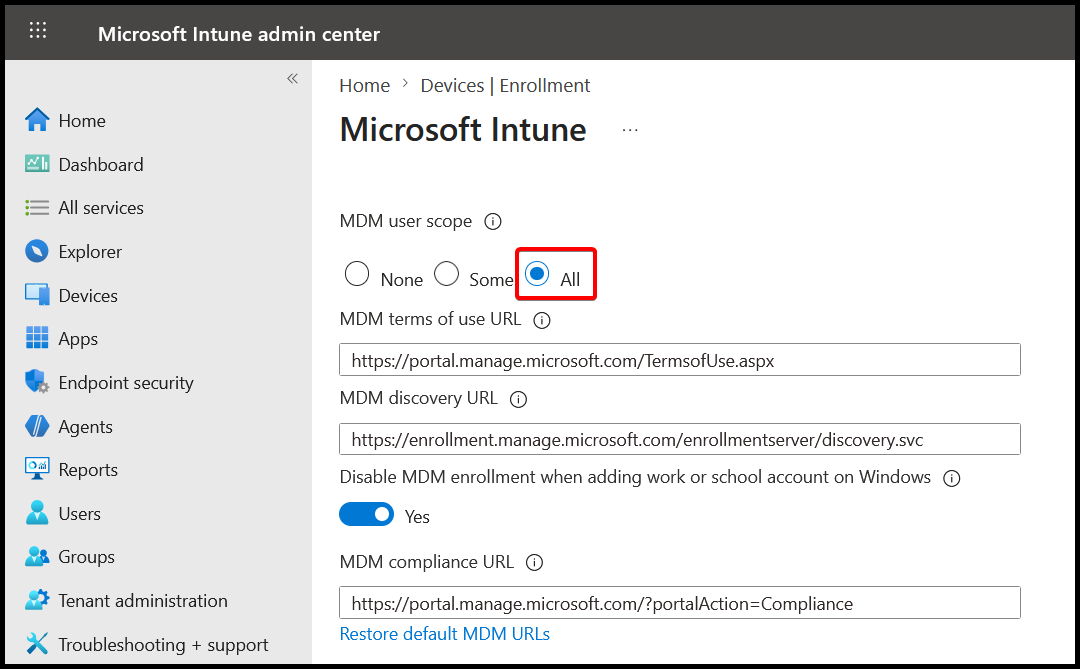
- Set MDM user scope to "all"
- Set "Disable MDM enrollment when adding work or school..." to "Yes"
That second setting prevents people accidentally enrolling devices that don't belong to the company from inside the OS.
Next we're going to do Windows Platform restrictions
Devices -> Enrollment -> Device Platform Restriction
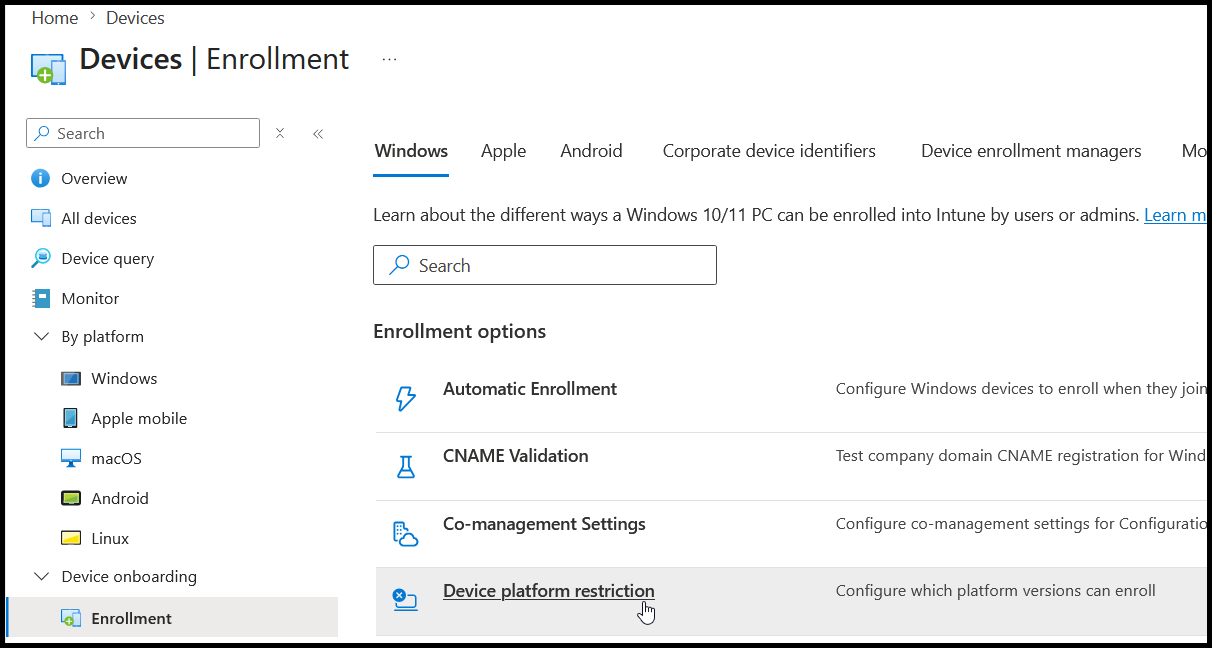
Select All Users
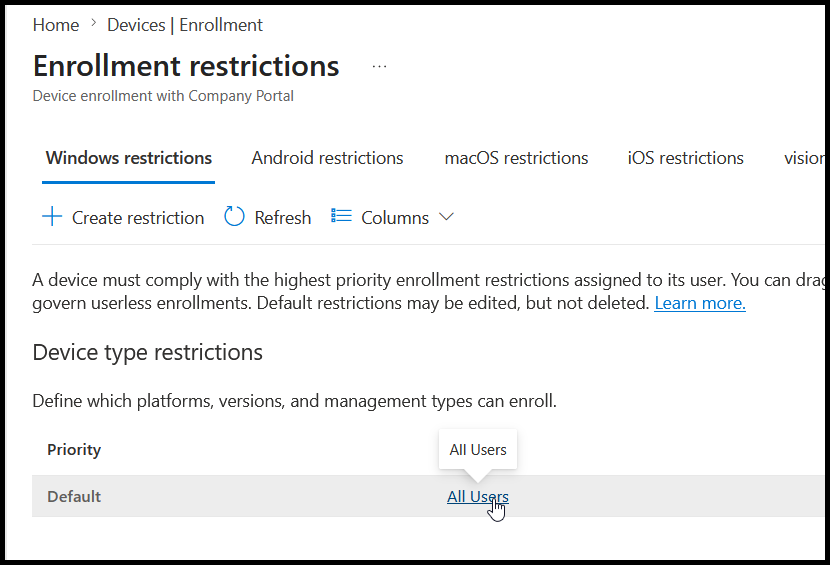
Proceed and click "edit", then change and apply the block for Windows
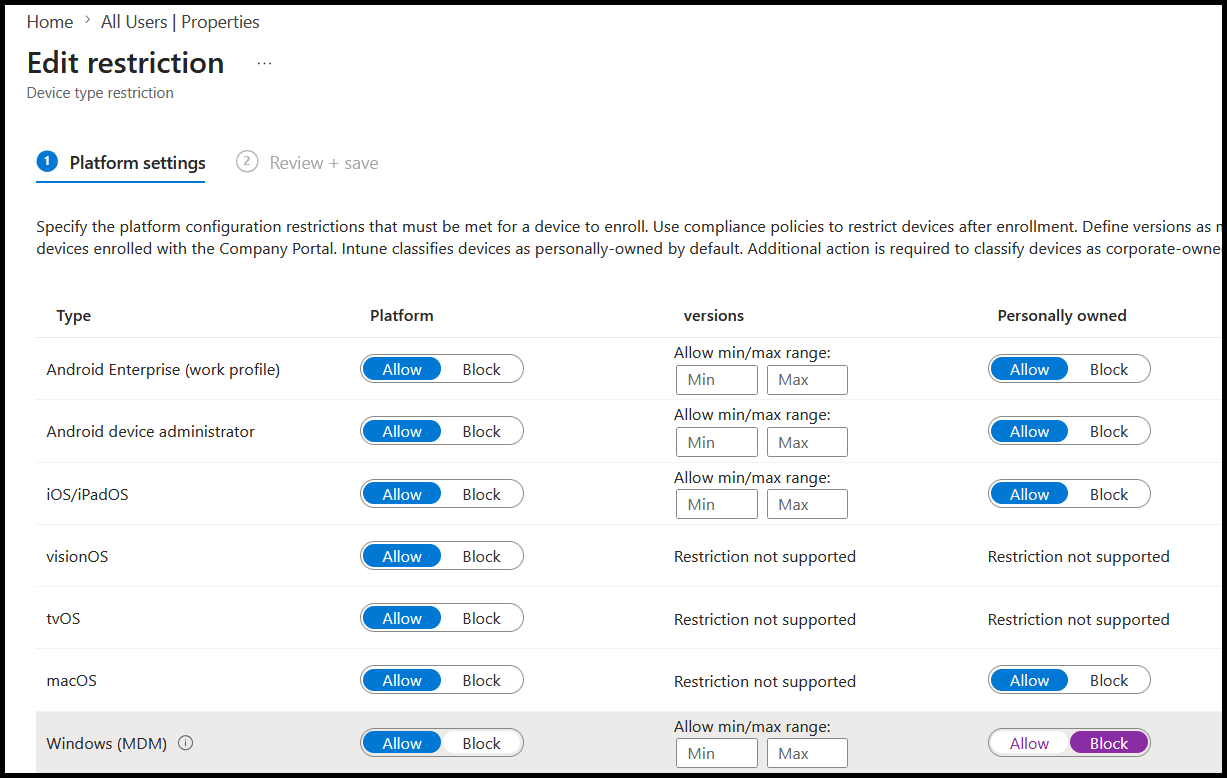
This means any device at OOBE which has not gone through Autopilot will be blocked from Intune enrollment. The device either needs a Hardware Hash (for V1), or a known Corporate Identifier (for Device Preparation) configured in the tenant.
Autopilot (V1)#
Let's configure Autopilot to meet the company requirements.
Deployment Profile#
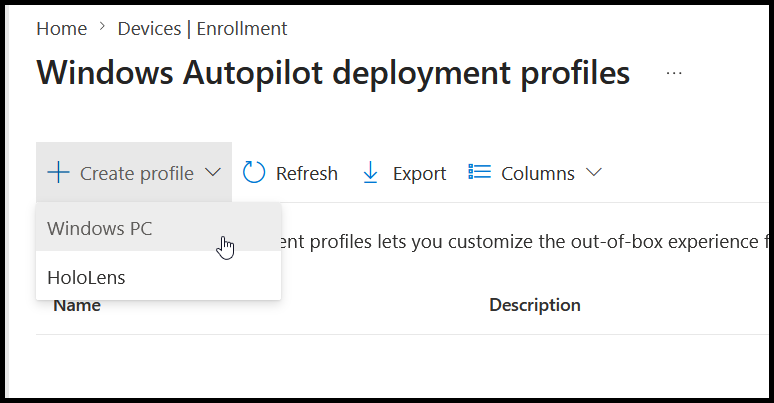
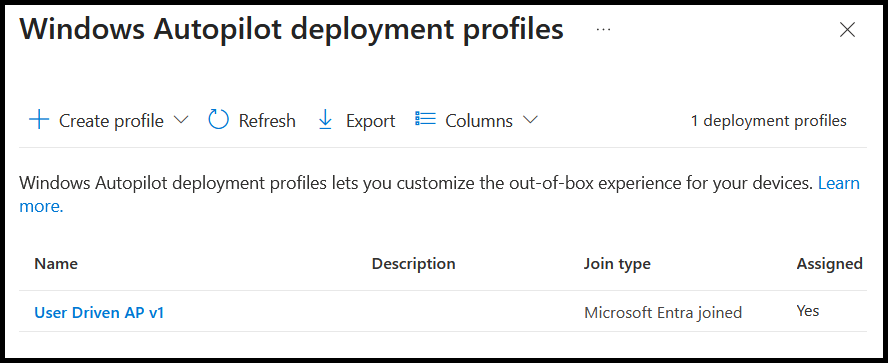
Go to Devices -> Enrollment -> Deployment Profiles
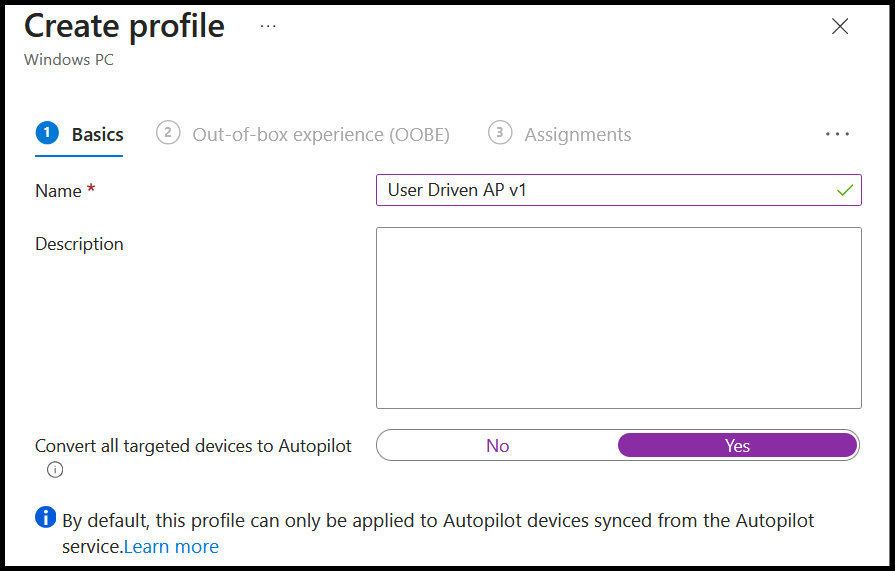
I'll give the profile a name, and convert all targeted devices to Autopilot, which is supposed to auto-upload AP hashes of existing devices in Intune to my tenant's Autopilot service
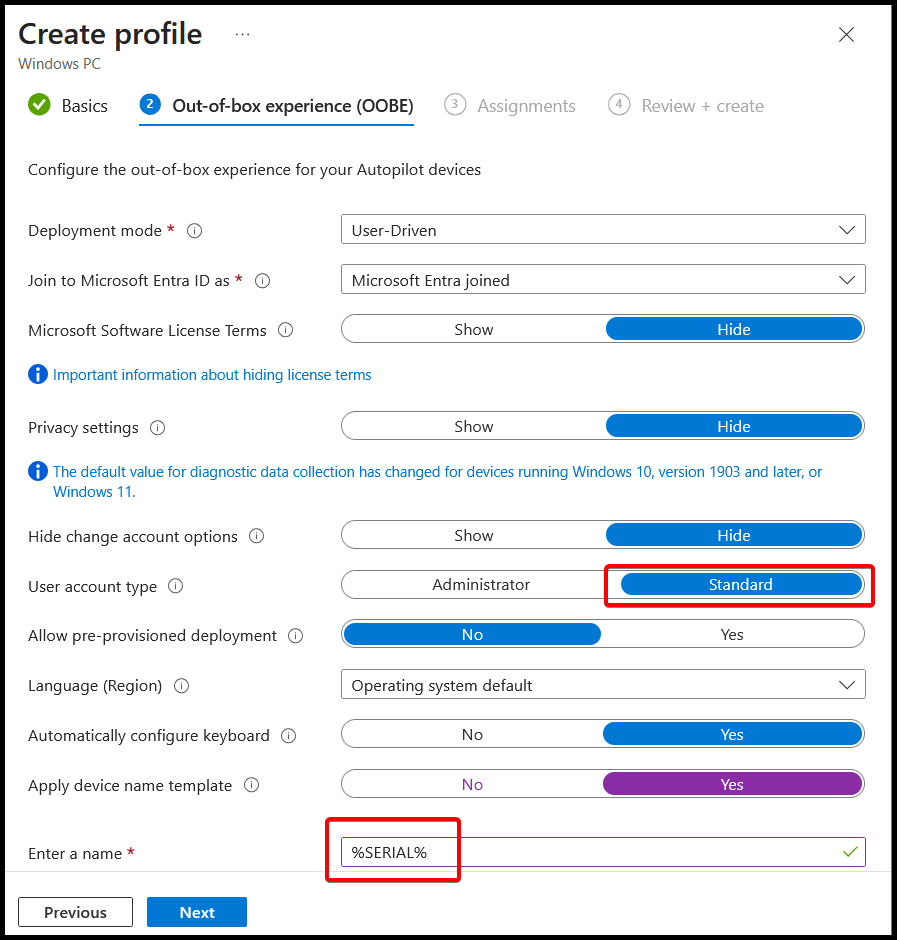
I'm keeping this really simple; making sure that users are Standard Users, and applying a basic name template
And for assignments, my favourite, all devices
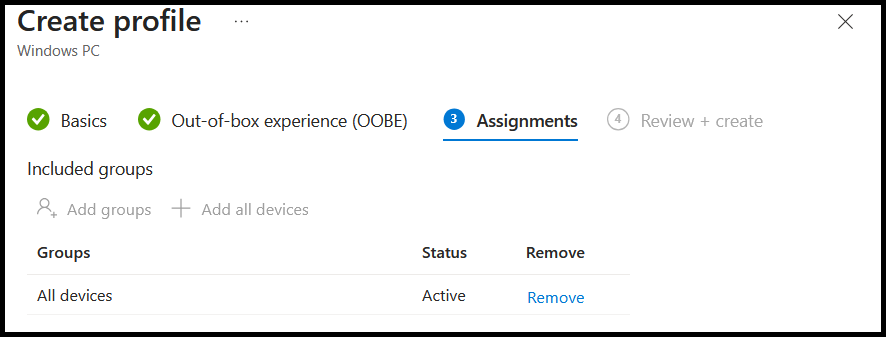
Deployment Profile is complete.
Enrollment Status Page#
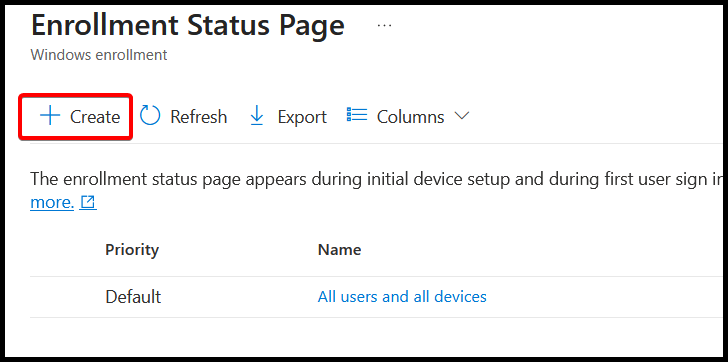
Devices -> Enrolment -> Enrolment Status Page. Let's create a new one
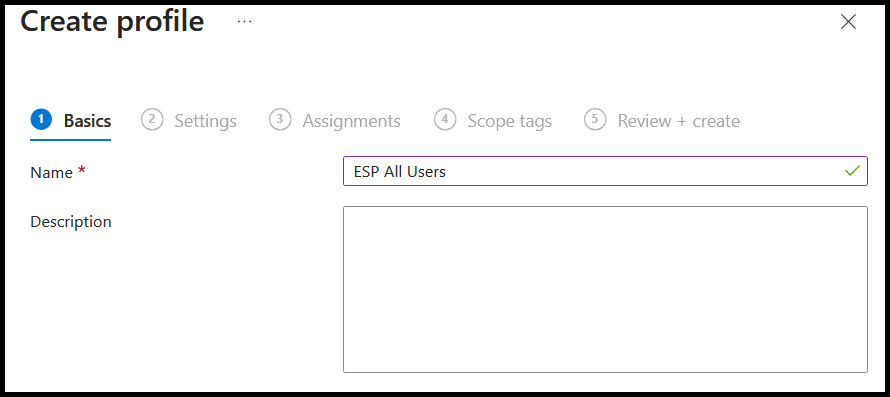
Give it a name
I'm allowing reset in the event of failure, and adding only M365 Apps to my blocking apps
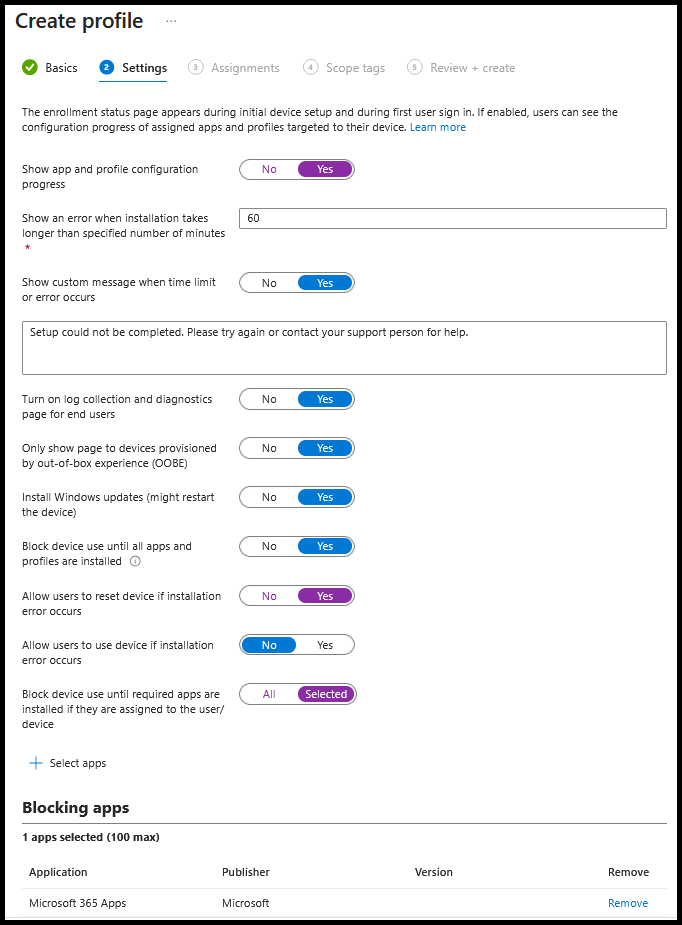
Even though it says "(100 max)" for the blocking apps, ideally that number should be as close to 0 as possible.
If there are additional apps people need, why not use Company Portal and allow users to self-serve as required?
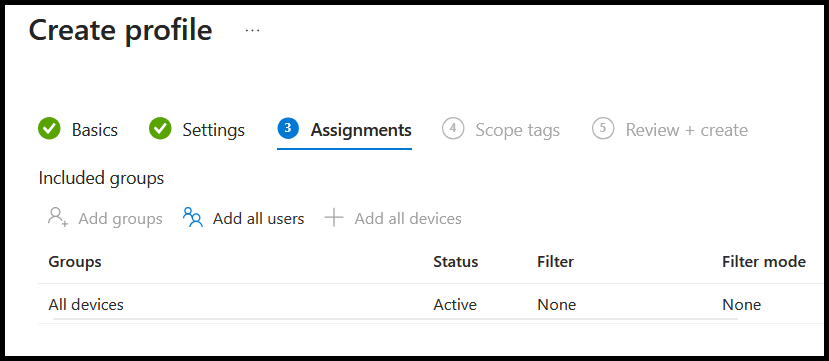
I assigned this to all devices, then continued through to completion
Skipping the user ESP#
Many admins make their required apps and settings a device-bound decision. This means there is nothing for the user enrollment status page to do. In this instance we shall skip it by creating a custom policy which will save time and reduce errors.
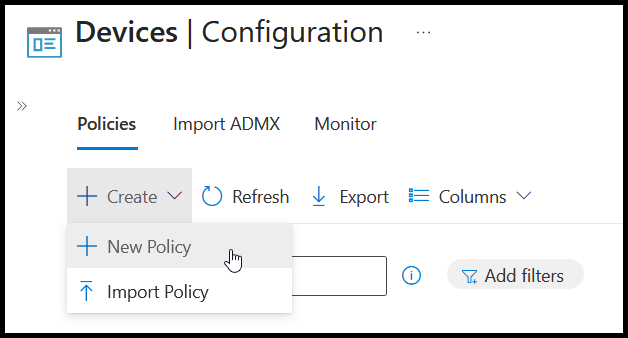
Devices -> Configuration -> Create New Policy
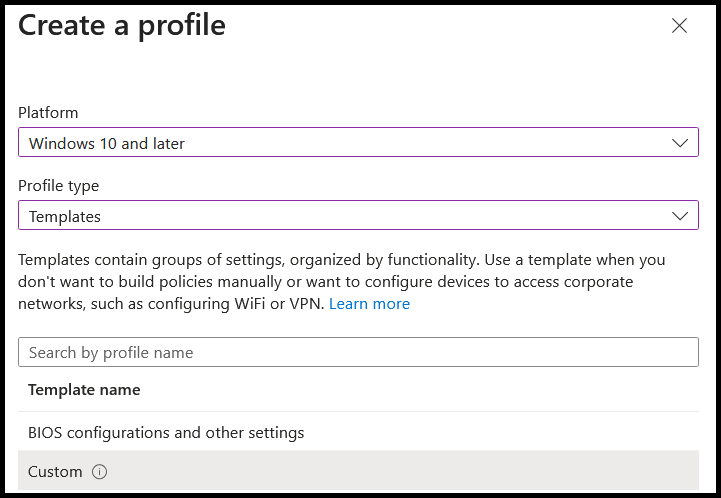
Windows 10 -> Templates -> Custom
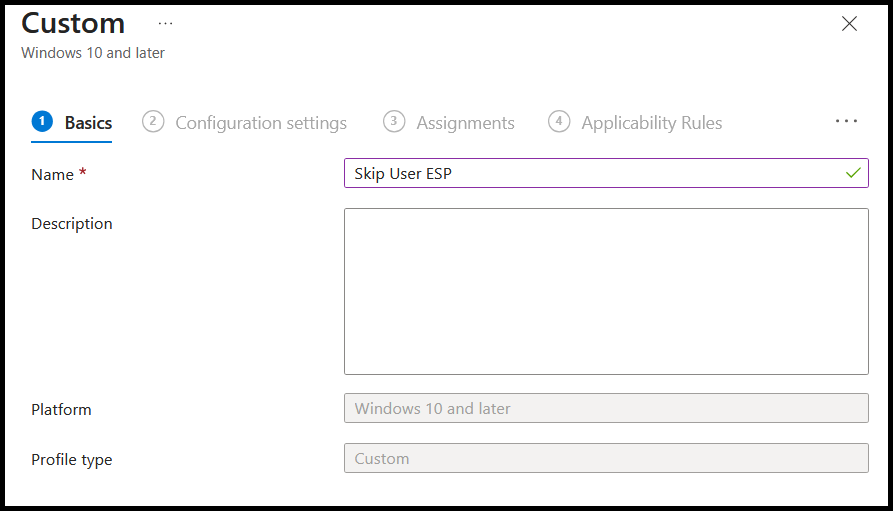
Give it a name
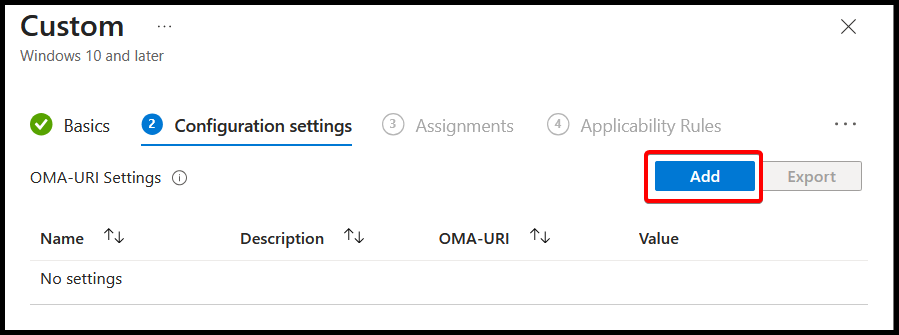
Add the Custom OMA-URI detail
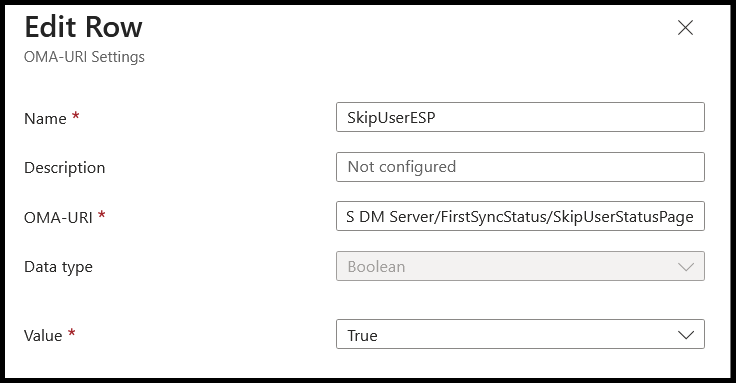
./Device/Vendor/MSFT/DMClient/Provider/MS DM Server/FirstSyncStatus/SkipUserStatusPage
When done, assign to All Devices.
The Hardware Hash#
Now the backend work is done, we're ready to introduce devices.
Hardware hashes are the distinct differentiator between Autopilot and Device Preparation. In V1, no hash, no Autopilot. In Device Prep, the flow is identity driven and the OOBE is guided based on what it learns about the first user who logs in. If that tenant where the Entra ID account belongs to has Device Prep configured, it'll follow that flow, if nothing is configured (or they for some reason select "this is a personal device" during OOBE), it is treated as a consumer device.
Here's what's happening under the hood
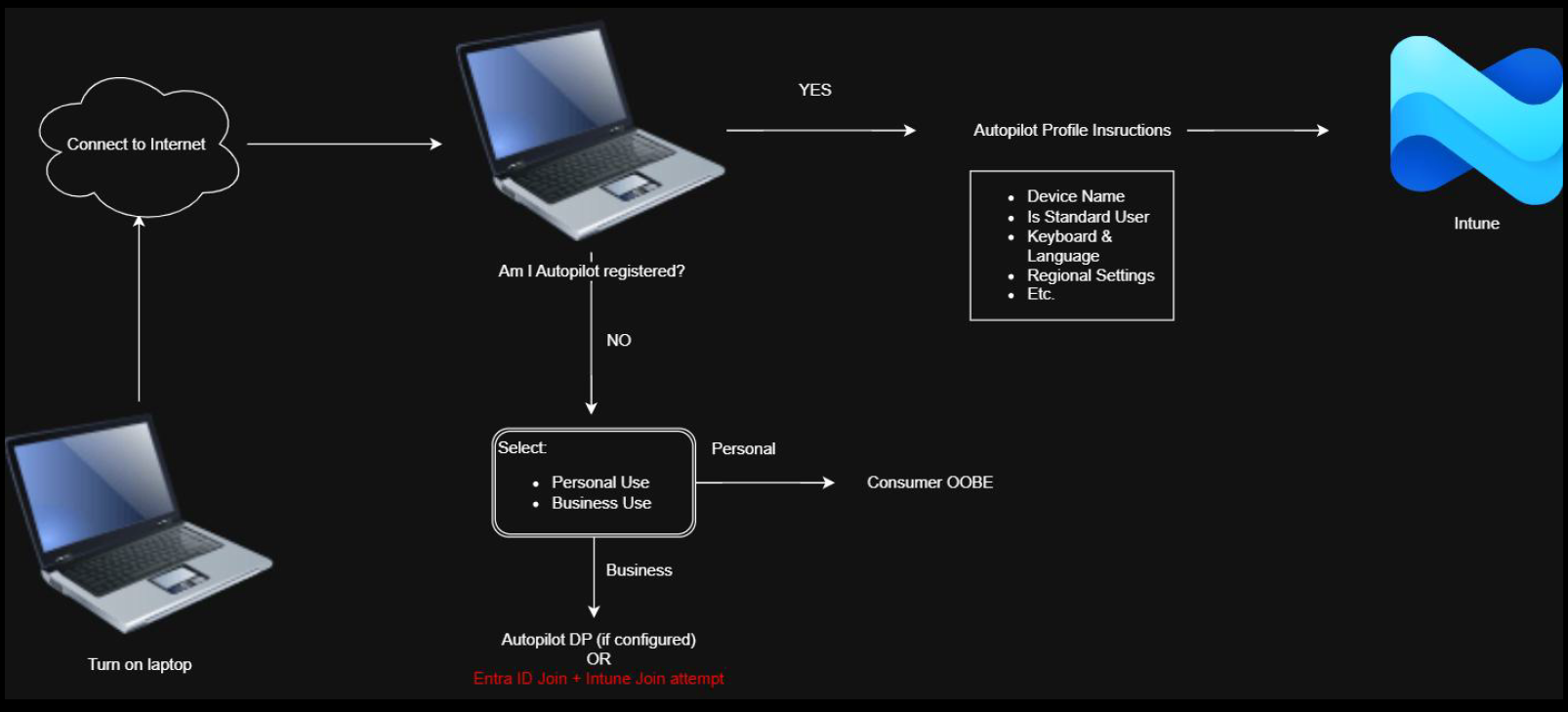
Notice that even if we don't have a hardware hash, the device will still attempt to join Intune alongside the Entra ID registration. This bit confuses a lot of people and many will assume that because they later see a device appear in Intune that it has gone through Autopilot. If that device didn't have a hash in your tenant, and you didn't set up AP DP, that device did not go through Autopilot which means: the user could be a local admin, the device won't have a name template, but even worse, it might not even be a device you know about.
Collecting the Hash#
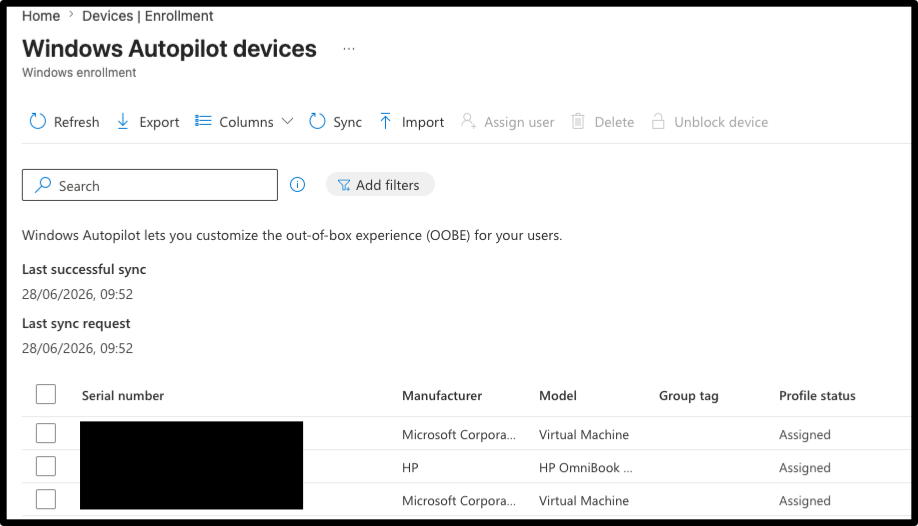
Built directly into the OS, Windows 10 & 11 machines are Autopilot-aware and have the capability to generate a hash which can be ingested into the tenant. You have to generate, collect, and upload these hardware hashes into your Intune tenant.
The officially documented way of doing this is here
The community edition (and more reliable way) of doing this is here
One other useful way of doing this is via a script which utilises an Entra ID application registration, this is detailed here
Confusion Avoidance
You may have seen other Intune setup guides online which detail using Group Policy to get pre-existing machines Intune joined. We are not doing Intune join here, only Autopilot registration. These steps, as we've already covered, have no impact until the device is wiped. That last link is particularly useful in MSP settings, where often you have some means of pushing a script to all devices.
Autopilot Device Preparation (V2)#
Now let's do it a different way. AP V1's features will develop on a different path to Device Prep. Device Prep will continue to be built for the higher compliance environments where Autopilot isn't an option. Microsoft don't like people calling it V1 and V2, so we should all stop it.
See here for the comparison between the two.
Group#
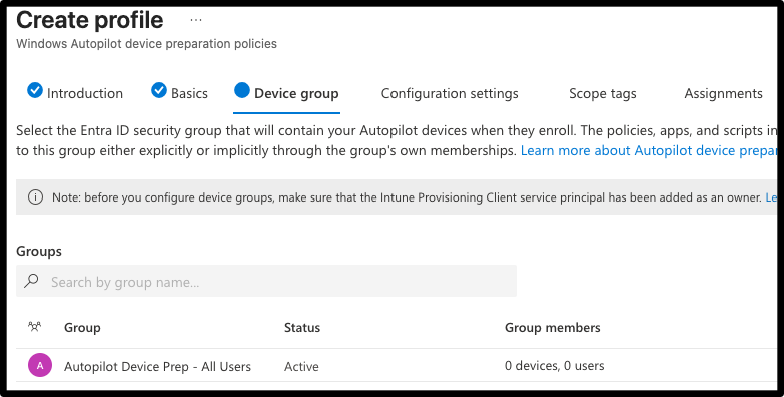
Since Autopilot Device Preparation is user-driven, at some point we will want to apply device policies to those Windows PCs which users sign into. We need to create an Entra ID assigned Security Group which the Device Prep service will automatically add devices to as part of the process
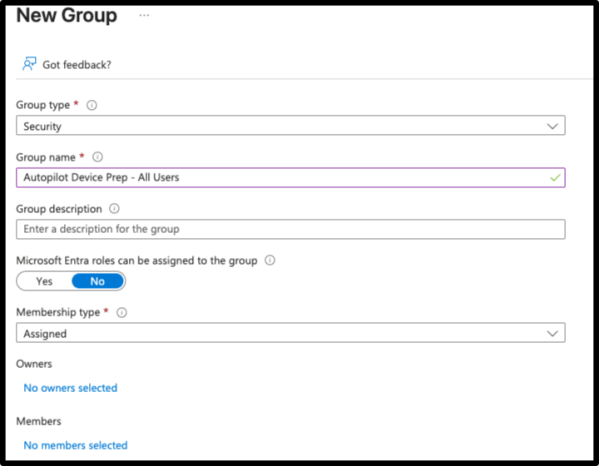
Next, you need to make the Intune Provisioning Client an owner of this group so that it can add devices
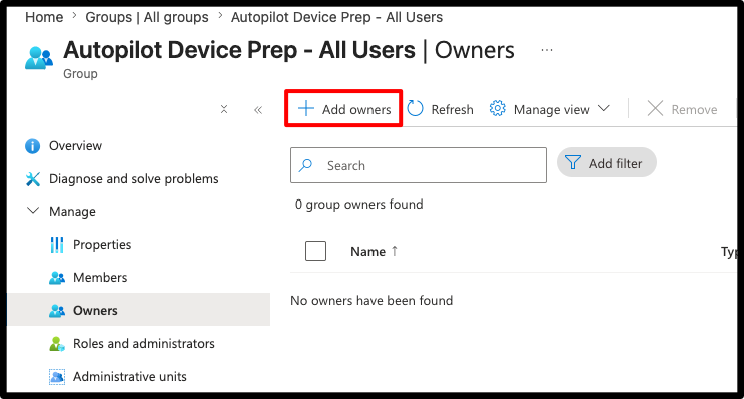
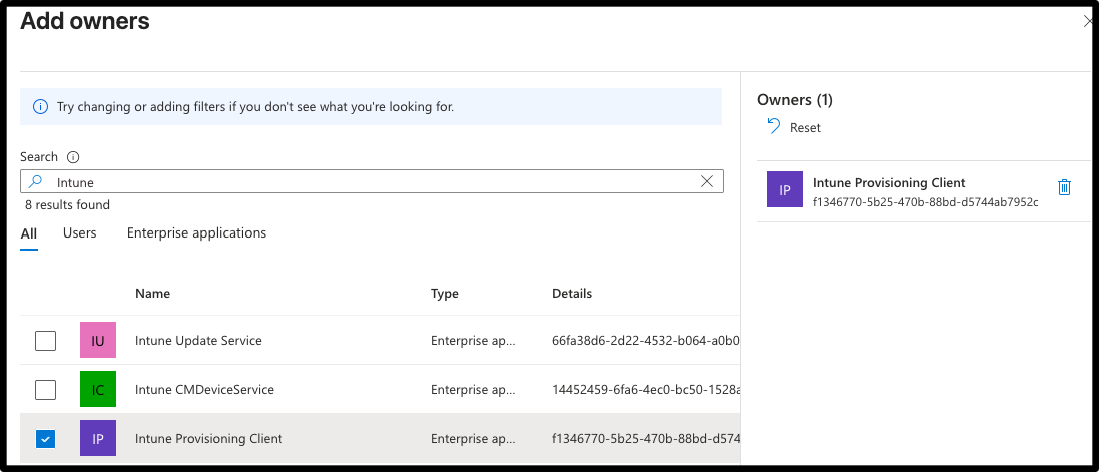
If Intune Provisioning Client isn't showing up in your tenant you need to run some MS Graph PowerShell to fix:
First
Install-Module Microsoft.Graph.Authentication
Install-Module Microsoft.Graph.Applications
Then
Connect-MgGraph -Scopes "Application.ReadWrite.All", "Directory.AccessAsUser.All"
Next
New-MgServicePrincipal -AppId f1346770-5b25-470b-88bd-d5744ab7952c
Might take a while, go play some Tekken 3 in the meantime.
Device Preparation Policy#
Devices -> Enrollment -> Device preparation policies
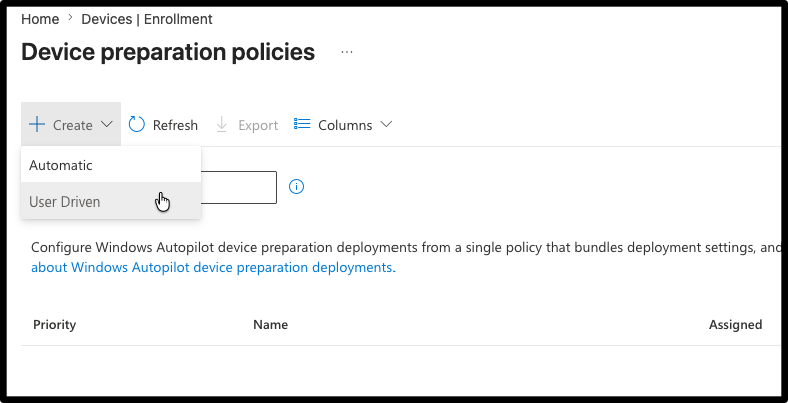
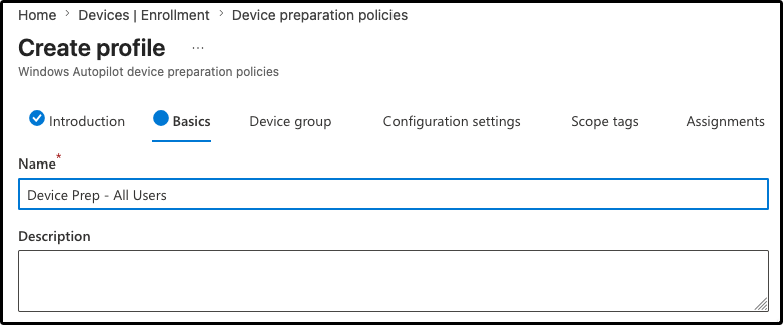
Press next and give it a name:
On the next screen, search and add that group we just made
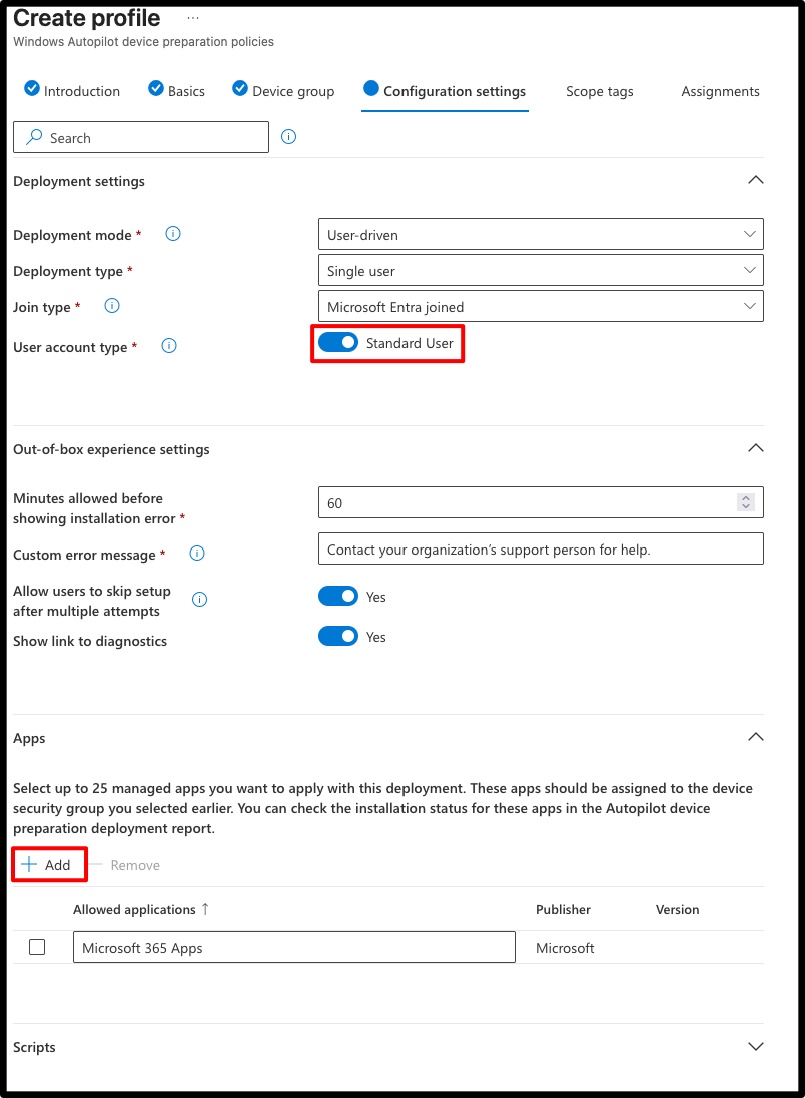
On the Configuration settings screen, be sure to change the User account type toggle to "Standard user", and then add your M365 app as the blocking app:
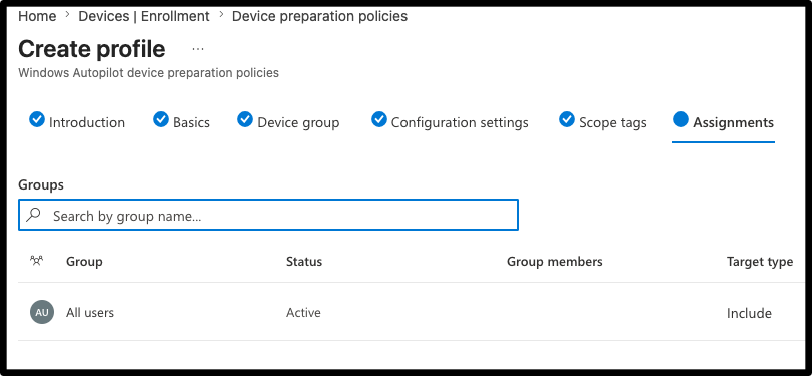
I'm skipping scope tags and moving onto the Assignments.
In our example, we're keeping it basic and applying to all users in the tenant, but in this screen you might think to yourself that different groups of users could require a different OOBE or blocking apps. Personally, I would stick with one and then use Company Portal for additional apps, that way you don't have to manage any flavour of Autopilot more than strictly necessary
What happens?#
Since our Device Preparation included group is the "All Users" group, anyone who selects "Business Device" on Windows OOBE will be guided through V2, be a standard user, and their device gets added to the badly named Entra ID Security group I made earlier.
The mandatory group that Device Preparation asks for is the system's way of doing something device bound via an identity-driven entry point. Autopilot V1 doesn't require a group, but it does have Group Tags, so think of it as an equivalent approximation of that.
We're not done yet#
Under normal circumstances, Autopilot Device Preparation will work. But in our example, because we're configuring for Pineridge Fixture's requirements, we blocked the enrollment of personal devices. If you tried to do Device Preparation in OOBE right now, it would be blocked.
Corporate Identifiers#
In Autopilot Device Preparation, think of Corporate Identifiers like a simpler version of the Hardware Hash which we use in AP V1.
Initially, it might seem contradictory to set this up. You've been told that Device Preparation is flexible, user-driven, and removes the need to have prior knowledge of the incoming device before it can enrol. But honestly, the second you start unpacking that you realise that model is too good to be true if device validation is top-of-mind. Corporate Identifiers satisfies this validation part, and for me, it is an absolutely necessary step if you are trying to get the similar peace of mind as you have with AP V1.
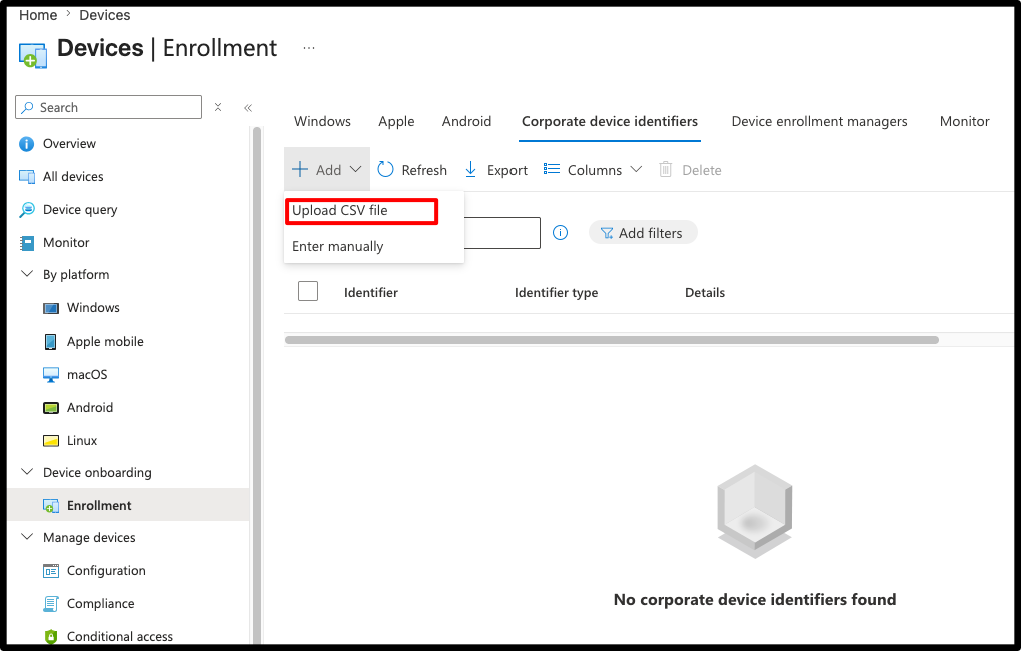
To configure, go to Devices -> Enrolment -> Corporate device identifiers tab
You need a CSV that follows format: Manufacturer, Model, Serial
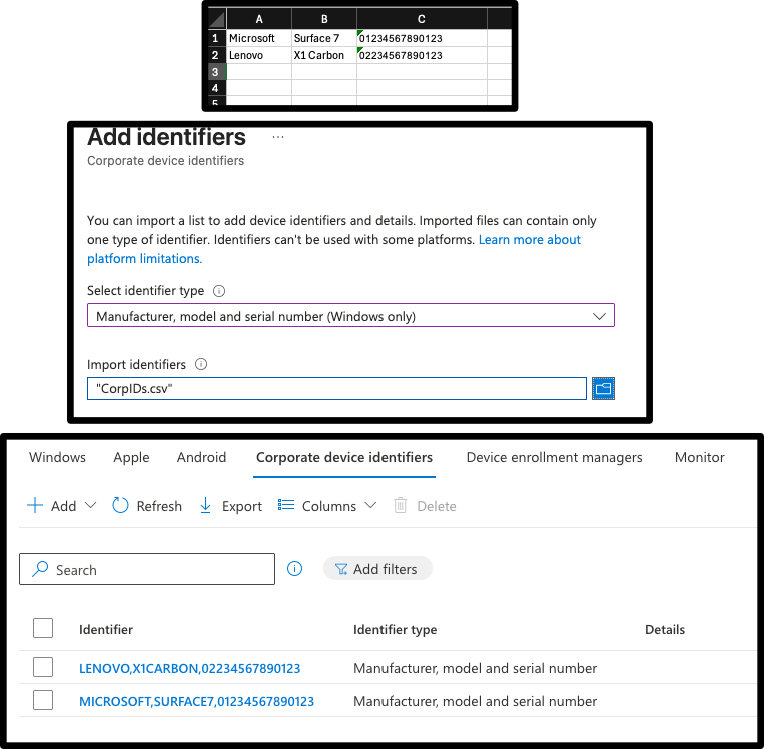
Complete and upload, then you've got yourself some basic device enrolment verification.
What have we done?#
Using either Autopilot or Autopilot Device Prep, we've met the requirements for Pineridge Fixtures.
- People can enrol devices wherever they are using either the V1 hash, or the Device Prep Corp Identifier - V1 hash will win over the Device Prep flow if it exists
- If you use "all devices" as a target group for all your security settings & endpoint policies, this will work fine - Group Tag based dynamic groups will not work for V2 enrolled devices
Should you use Device Preparation?#
If you've got a device vendor that already uploads the Hardware Hash and V1 works fine for you. No
If you only get limited information about a device, like serial, and you don't have technical people around to do the V1 hash collection, then yes I think it makes sense.
There is no harm having this configured as your back-up enrolment option, it's far easier to talk through on the phone than the hash gathering process.
Why does Device Prep Exist?#
It was primarily made for environments that cannot support the V1 hash ingestion, think GCC/Military tenants. Microsoft had to make something to allow people to enrol devices by identity only.
Main differences in functionality#
- V2 doesn't let you specify name templates
- V2 doesn't support Hybrid Join - and that's a good thing
- V2 has an app deployment limit - another good thing
- V2 supports GCC and GCC High tenants